This article shows how to create and delete Resident App credentials in an Enterprise access control system. Note: This is for systems that are not tied to PointCentral unit automation w/ Property Management Software integration, so manual App creation is needed
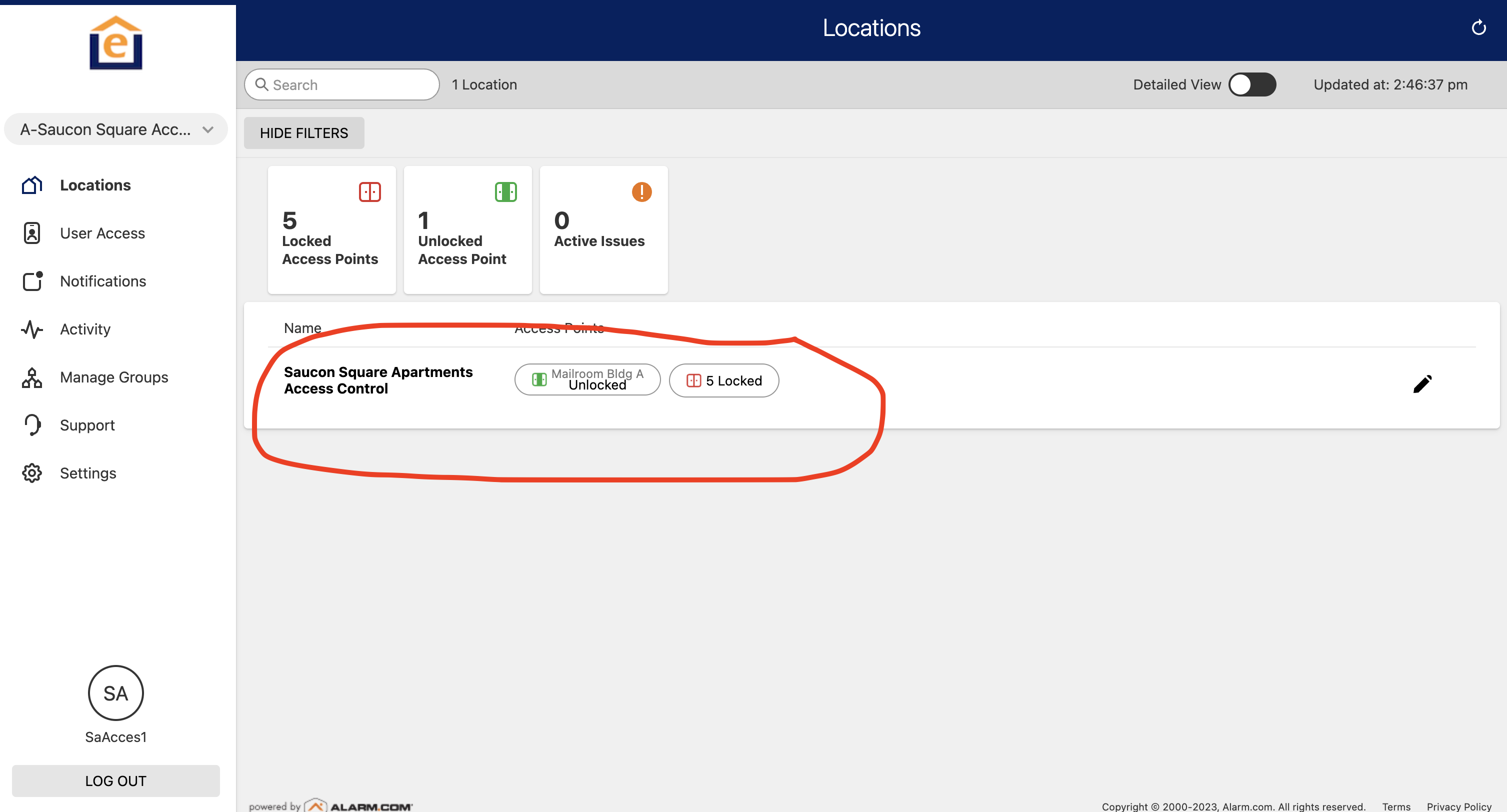
1) Login to alarm.com and click on the system name in the main screen section. This takes you from the Enterprise level to the system level.
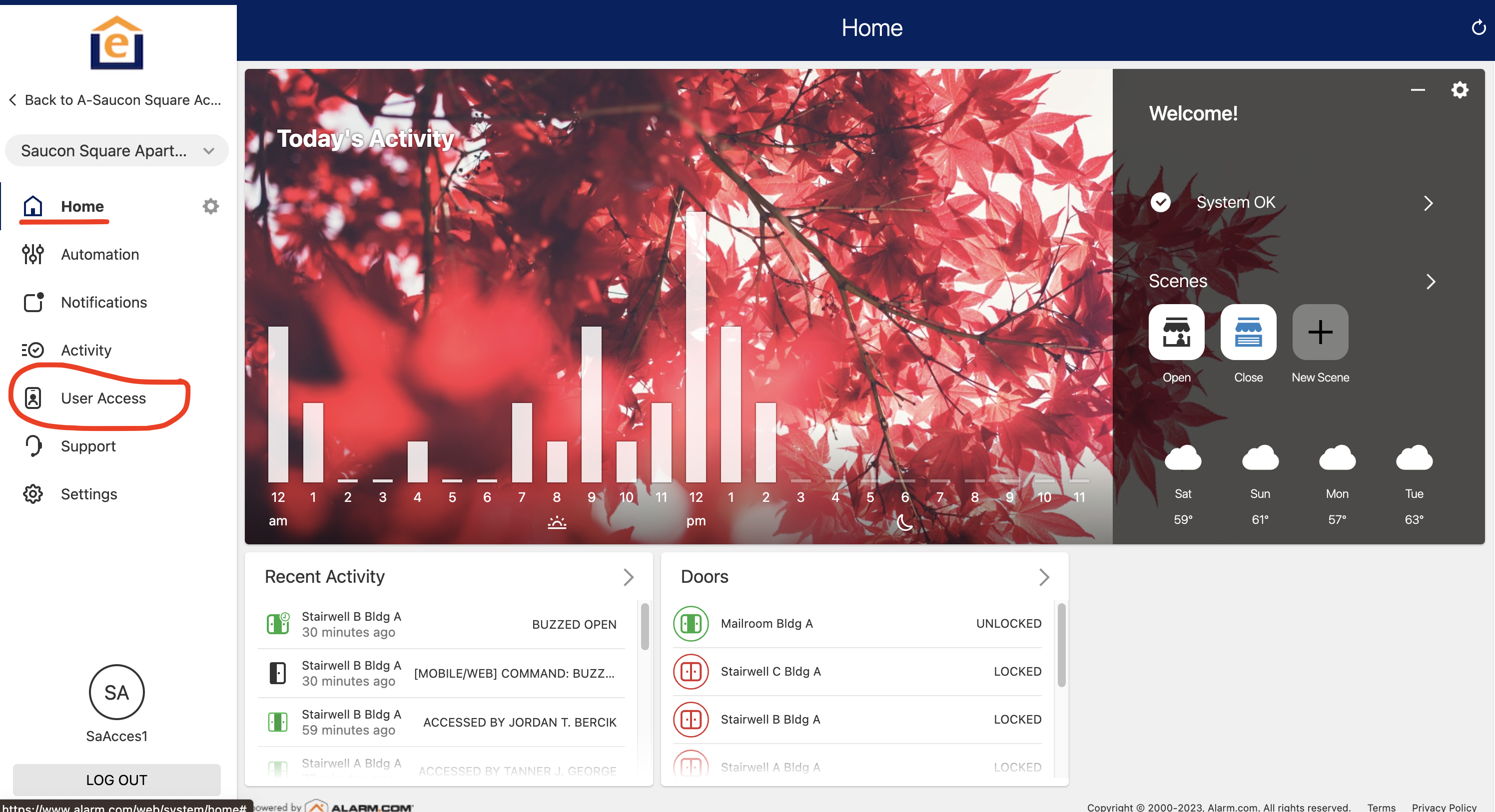
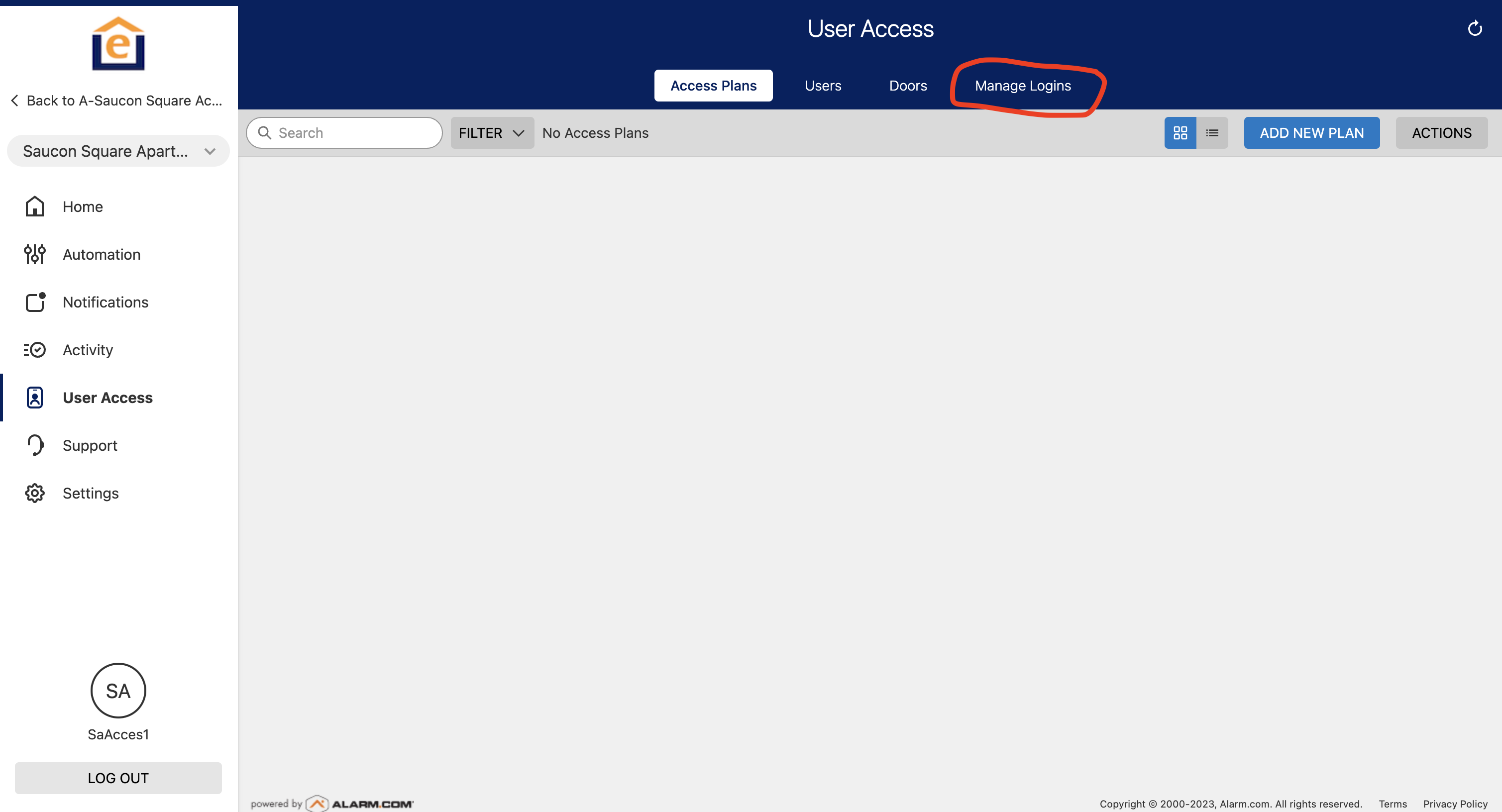
2) Click "User Access" along the left menu. Note: You'll see HOME at the top of the left menu - this means you're in the right place.
3) Click "Manage Logins" in the top menu
4) Scroll to the bottom and click "Add Login" 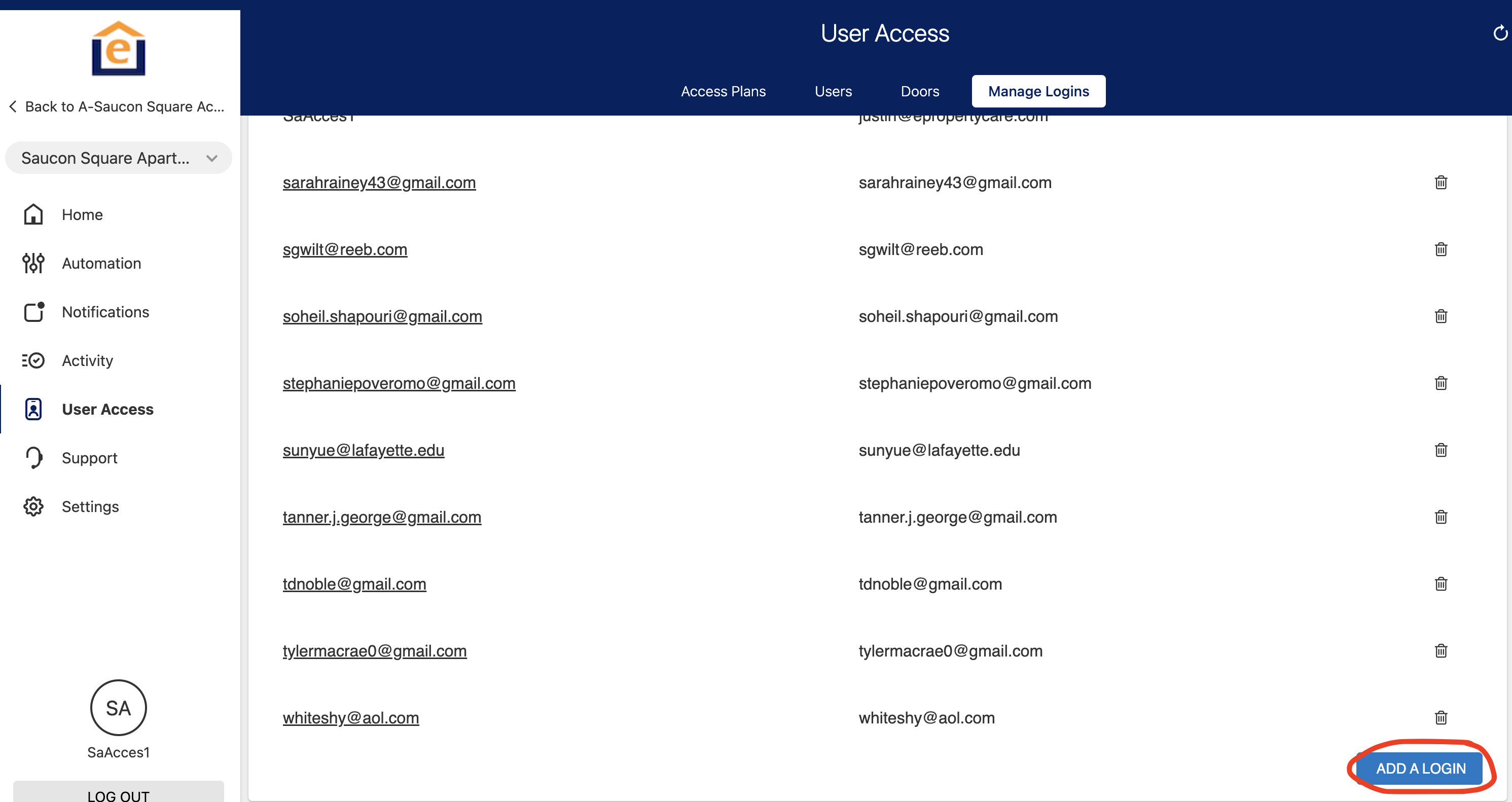
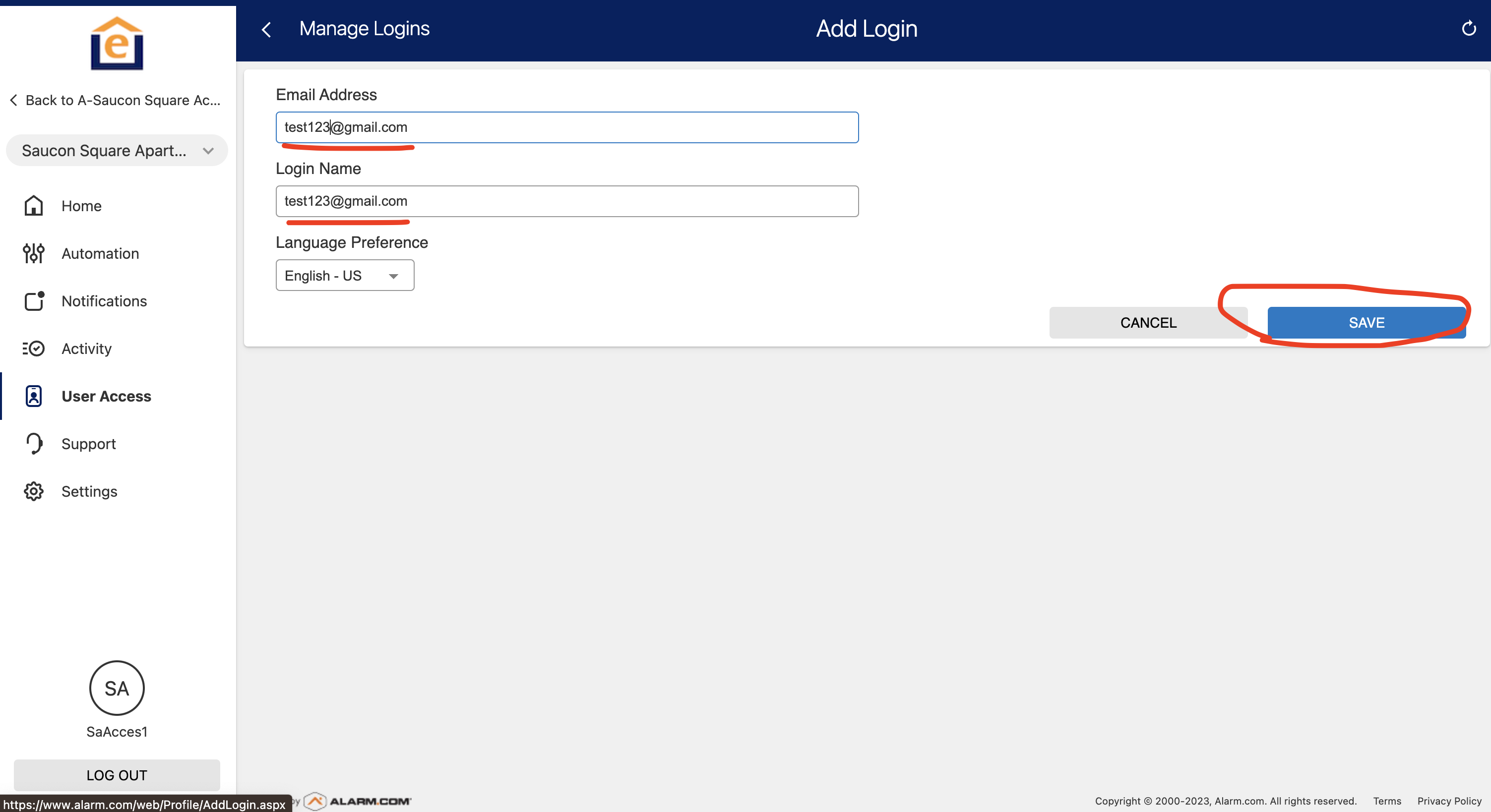
5) Enter email address of the resident. We suggest you use their email address as the login name as well. If it won't allow you, add a "1" to the end of the email address (this means they already have an alarm.com account that uses their email). Then click "Save". This will send an email to the resident - ask them to check their SPAM folder if they don't see it.
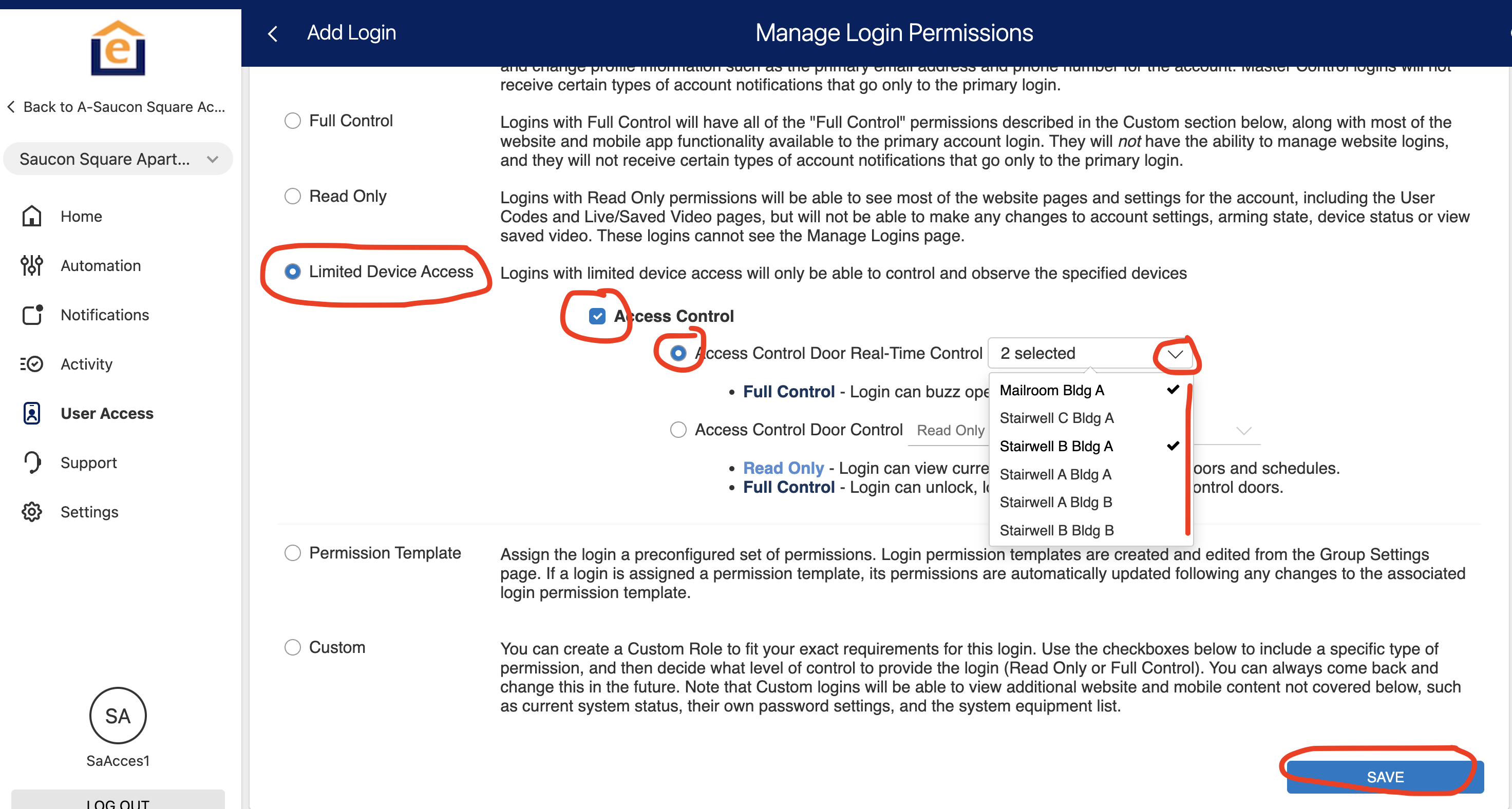
6) If this is a resident login, click on "Limited Device Access", "check" the Access Control button, select "Access Control Door Real-Time Control", then hit the drop down and choose the doors you want the resident to have access to. Then click "Save". The resident App will only show the doors you select.
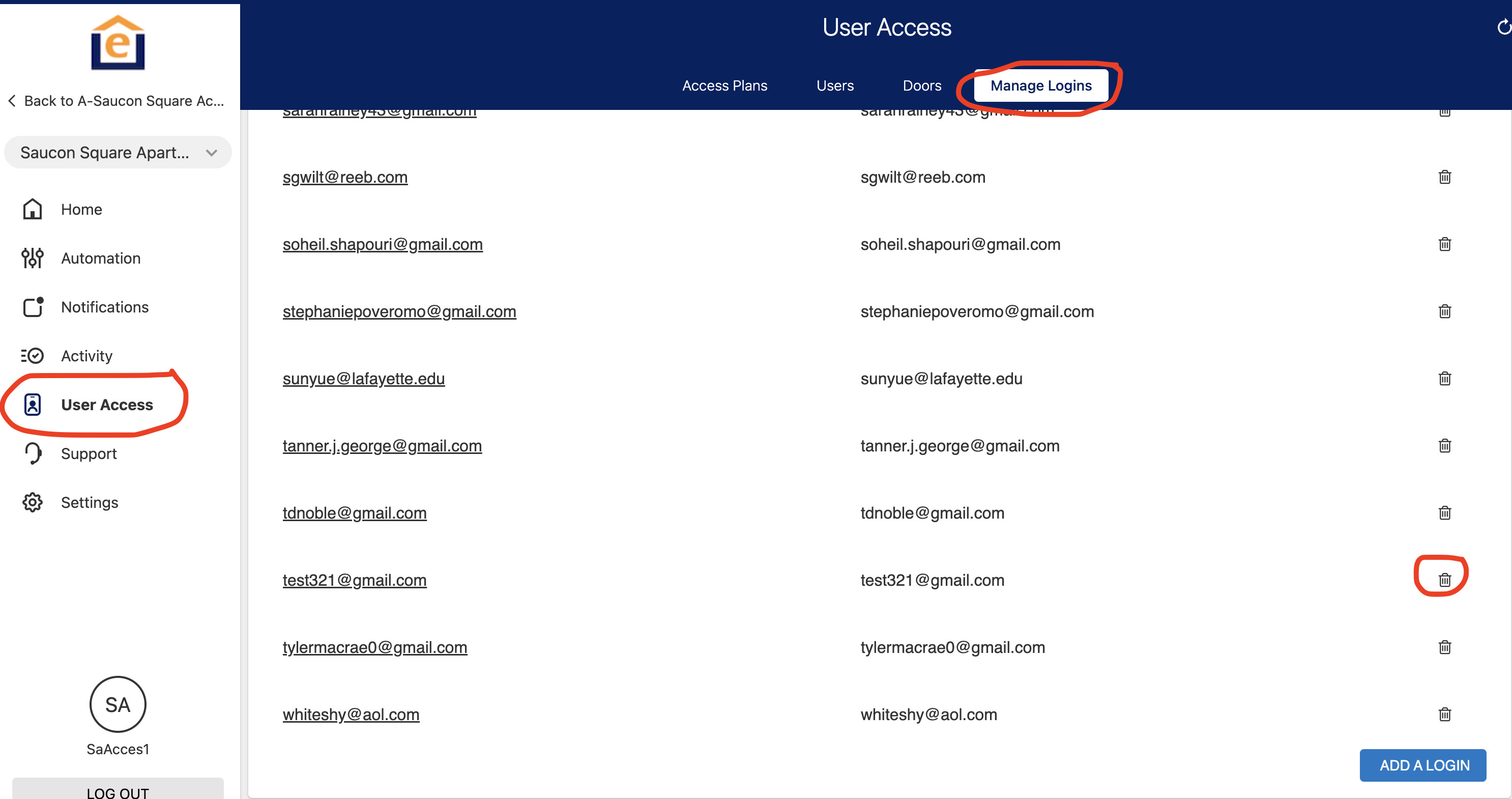
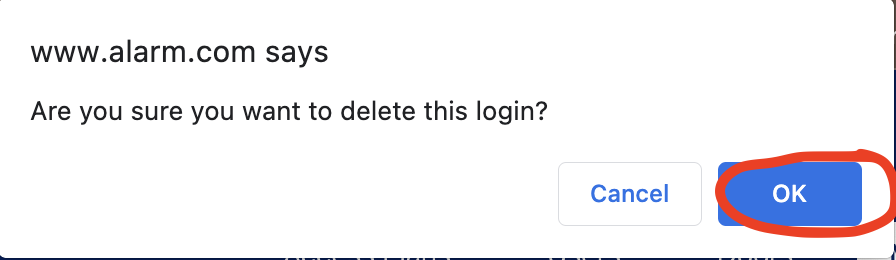
7) To delete a resident app login, go to the "User Access" menu on the left, then "Manage Logins" at the top. Click on the trash can next to the login you wish to delete, then confirm it.