There are 3 ways to process a resident when the property management software integration is in place.
1) Automated through the Property Management System
- This happens at the top of every hour automatically. So if you move a resident in via the PMS system at 7:15am the resident pin code + App login will be created and sent to the resident at 8am. If you move them in at 745am, the sync still happens at 8am.
- No action required. BUT if you need to process the resident sooner, follow step 2.
2) Instantly process resident in the PointCentral customer login
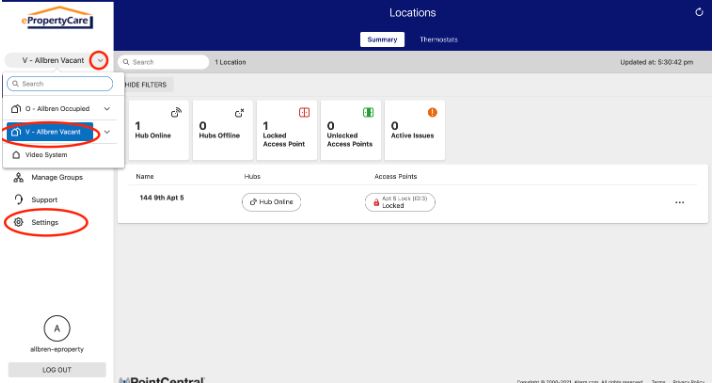
- Go to pointcentral.com and select the Enterprise group that the unit resides in (Vacant or Occupied). Normally this Enterprise Vacant Group (typically listed as V - "community name"), but in student housing or roommate situations, this might be in the Occupied Group.
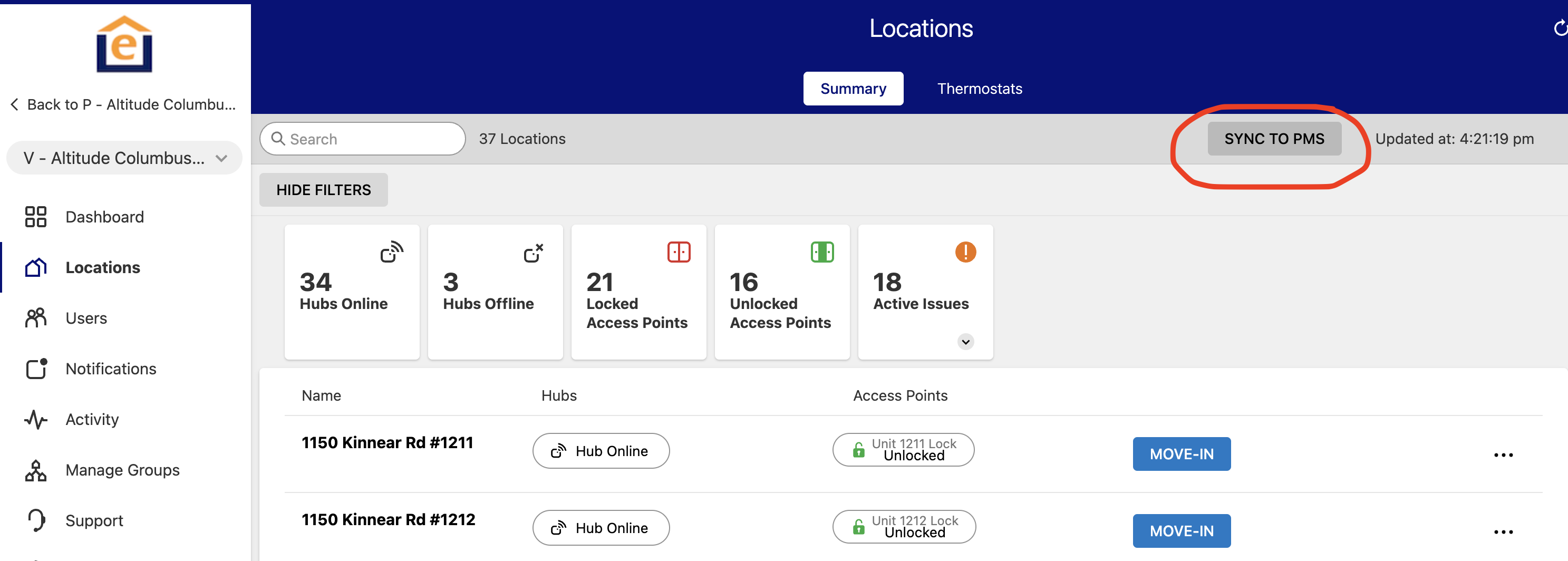
- Click "Sync to PMS". This will process the resident instantly vs waiting until the top of the hour. This will process any residents that are "Current" and have a move-in within 2 days of the current date. Note - if you have a move-in with a date after this 2-day window, follow step 3 or 4 below.
3) Manually processing the resident in advance of the PMS - follow THESE INSTRUCTIONS
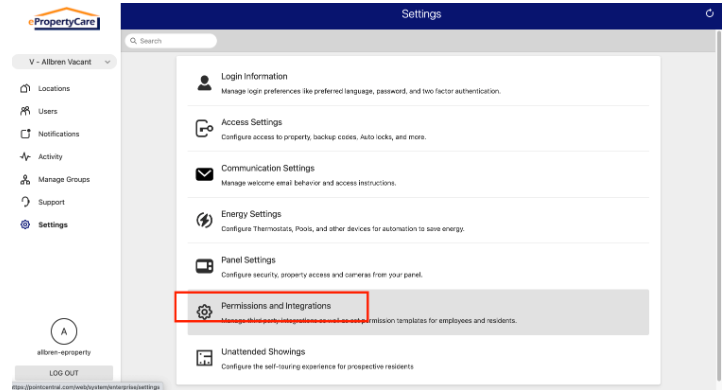
- From Enterprise Vacant group (if unit is vacant) or Occupied group (if unit has residents/roommates) go to "Settings" in left menu, then "Permission and Integrations", then "Property Management Software Integrations", enter a past date and the current date, then click "Process Residents". Note: If previous move-ins were missed you can go back several years and capture the residents.

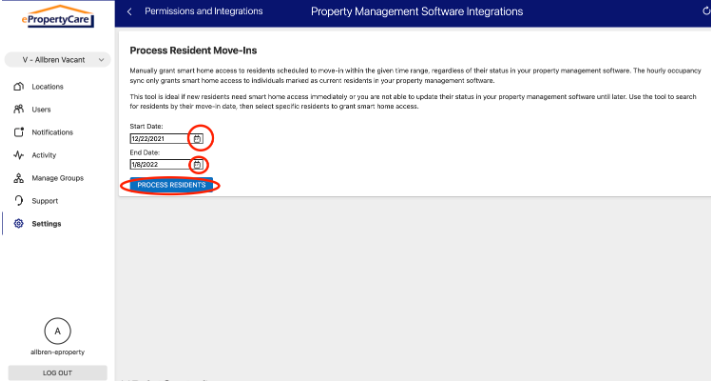
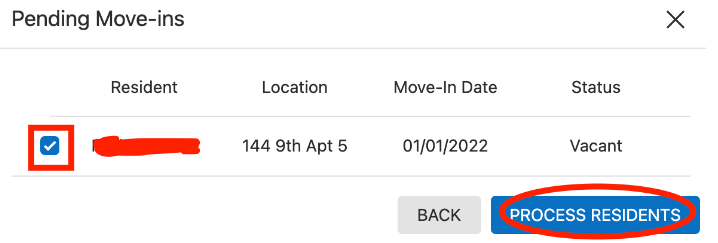
- This will pull up list of pending move-ins. You can then select the resident(s) you want to move-in and click "process residents". This will move the unit from the vacant group to the occupied group and create + email resident pin code and app login.
4) Move-in / Manage Residents Button
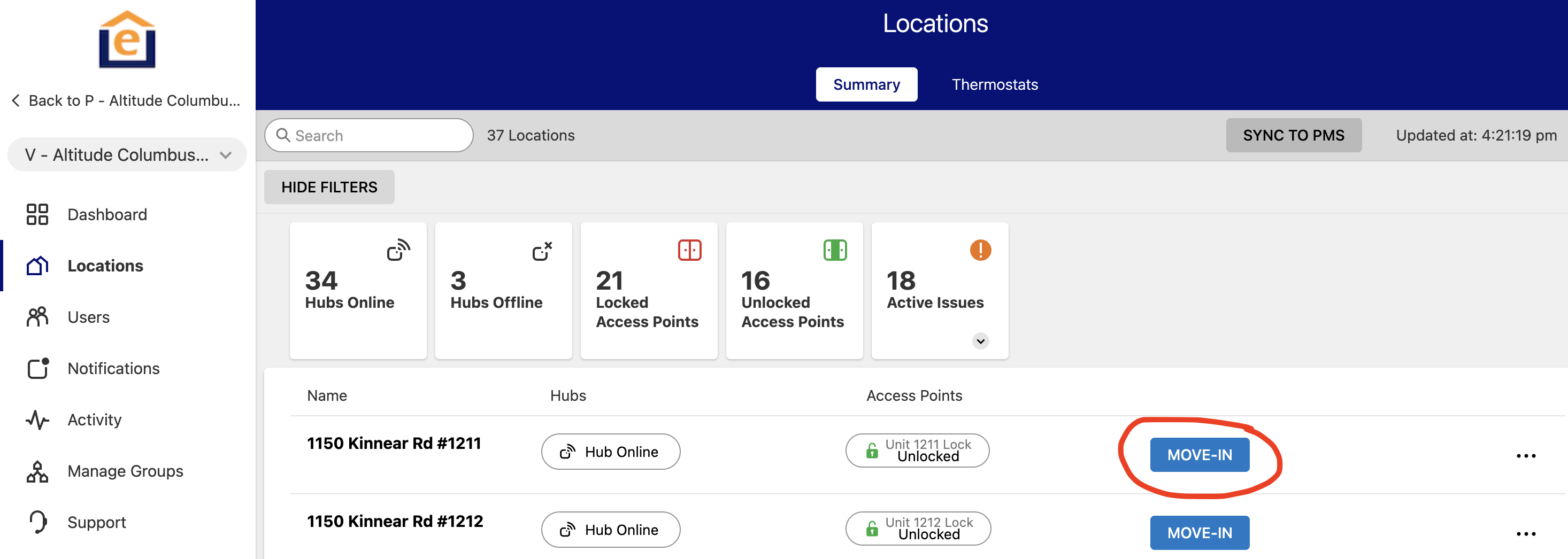
A new option is available in case the PMS integration is not working properly. From the Vacant group click the "Move-In" button in the unit you want to process (if unit is in Occupied group click "Manage Residents" button)
Vacant Group:
Occupied Group: 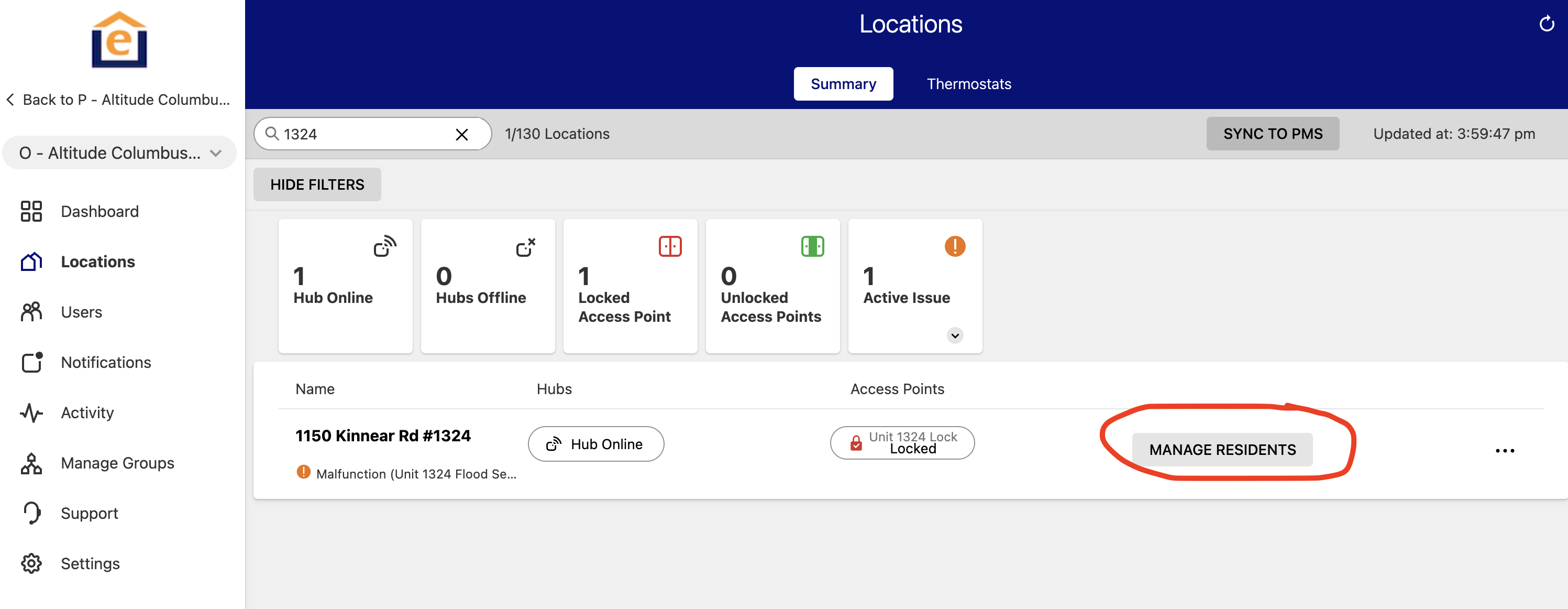
- Click "Import PMS Data" and it will import any visible resident data for you from the PMS for that unit.
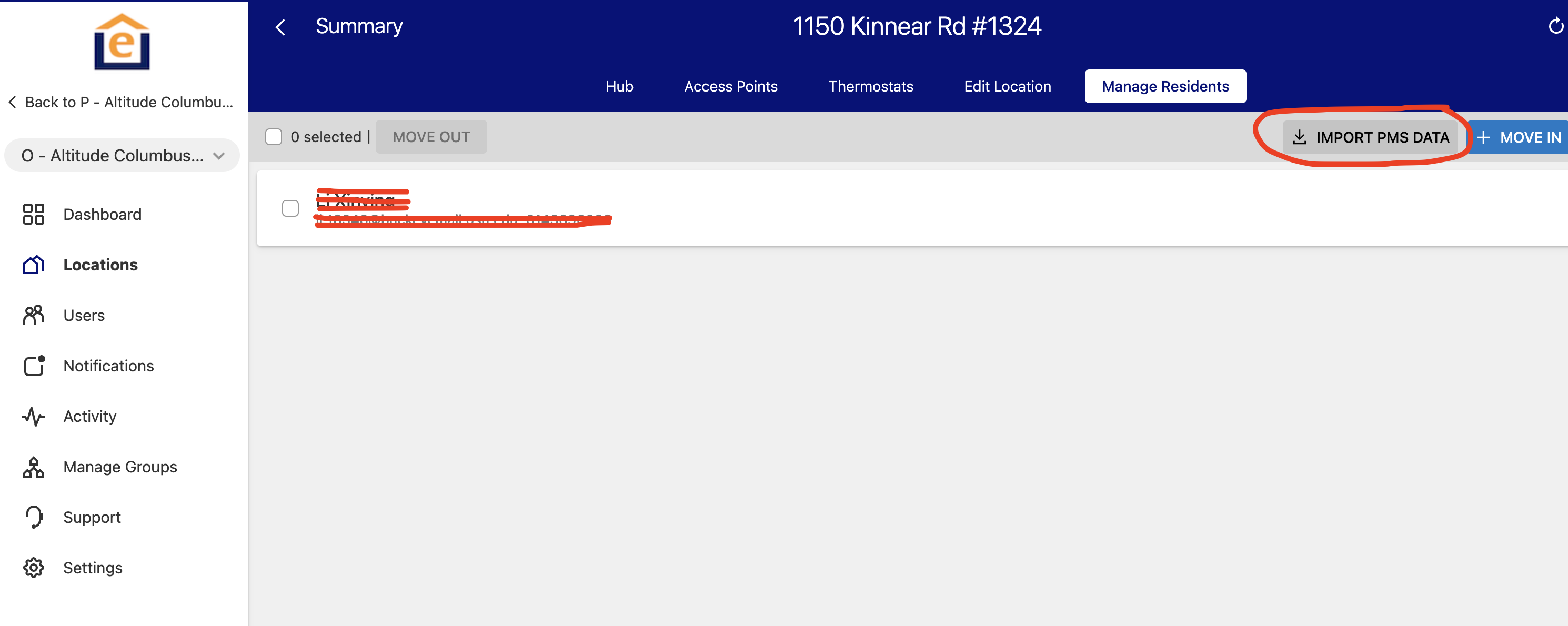
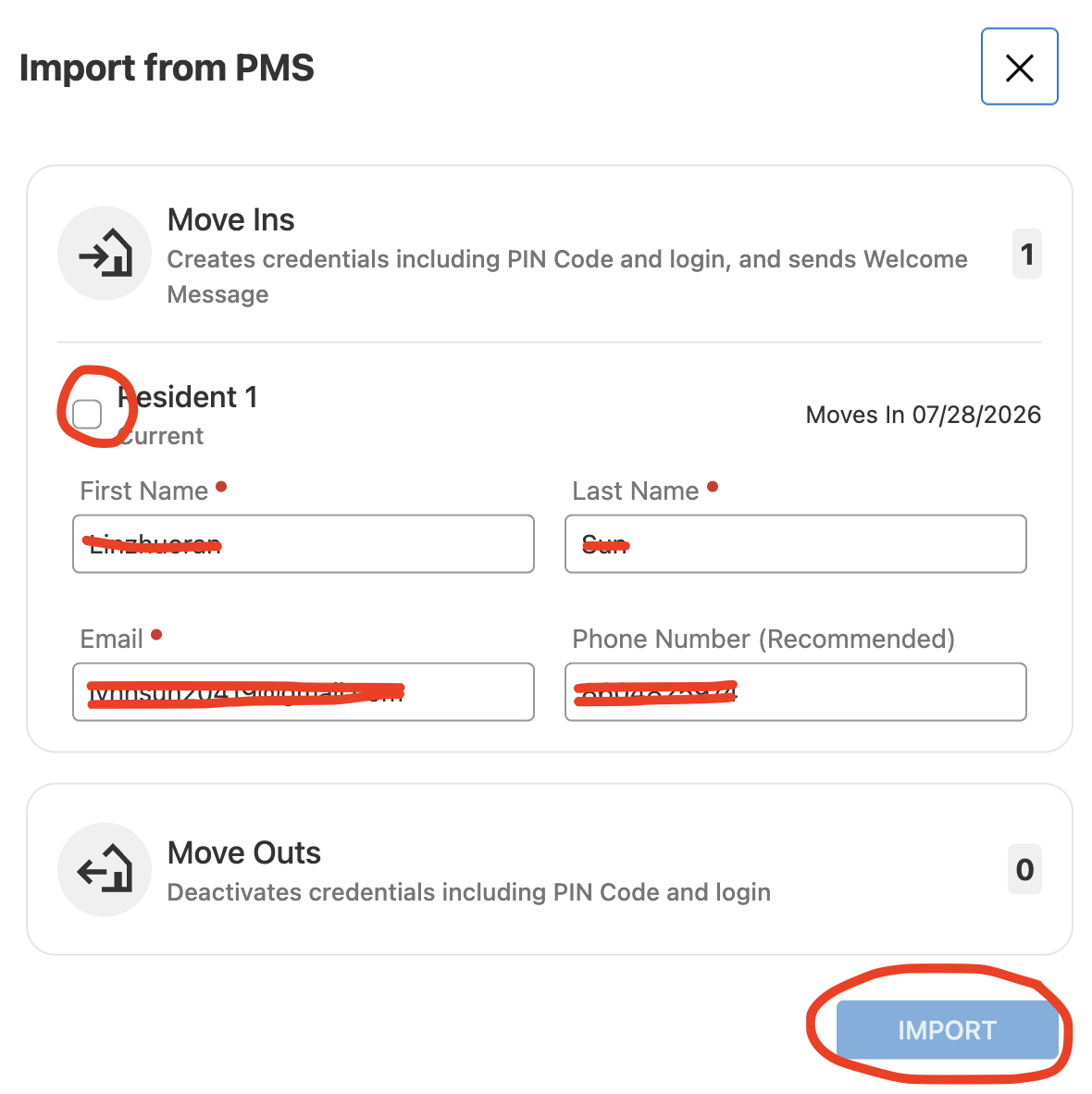
Verify resident information and check the box at top, then click "Import". This will process the resident(s) and send welcome email.
Note: The Move-IN button will allow you to enter the data manually if the PMS integration is not working properly.