This article explains how to setup video intercom call notification for residents using the alarm.com video intercom.
For residents:
The following is an example of the push notification the resident receives and what the resident sees during the call:

If the call is not answered, the resident will receive a missed call push notification. The following is an example of what the tenant sees in the mobile app:

To change intercom contact/call notification settings:
- Log in to the mobile app.
- On the Intercom card, tap
 .
.
- To edit the intercom contact information:
- Tap
 .
. - Update the intercom contact information as desired.
- Tap Save.
- Tap
- To edit the call notification settings:
- Tap Notifications.
- Configure the intercom notification as desired.
- Tap OK.
- To edit the intercom contact information:
For visitors
Note: Visitors are the users scanning the QR code at the entrance to start a call.
To set up and use intercom as a visitor:
- Scan the QR code displayed on the property to access the intercom directory webpage.
- Select the user to initiate a call.
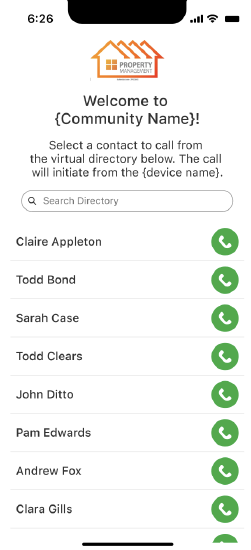
- A call screen will appear in the browser, showing the call is in progress.
- Residents and visitors can engage in a two-way conversation using the video device. The tenant will see the visitor via the video device, but the visitor will not see the tenant. The following image is what visitors see during a call.
