This article and link explains how to setup a new tenant login in the system:
Step 1: Go to www.Building36.com and login at top.

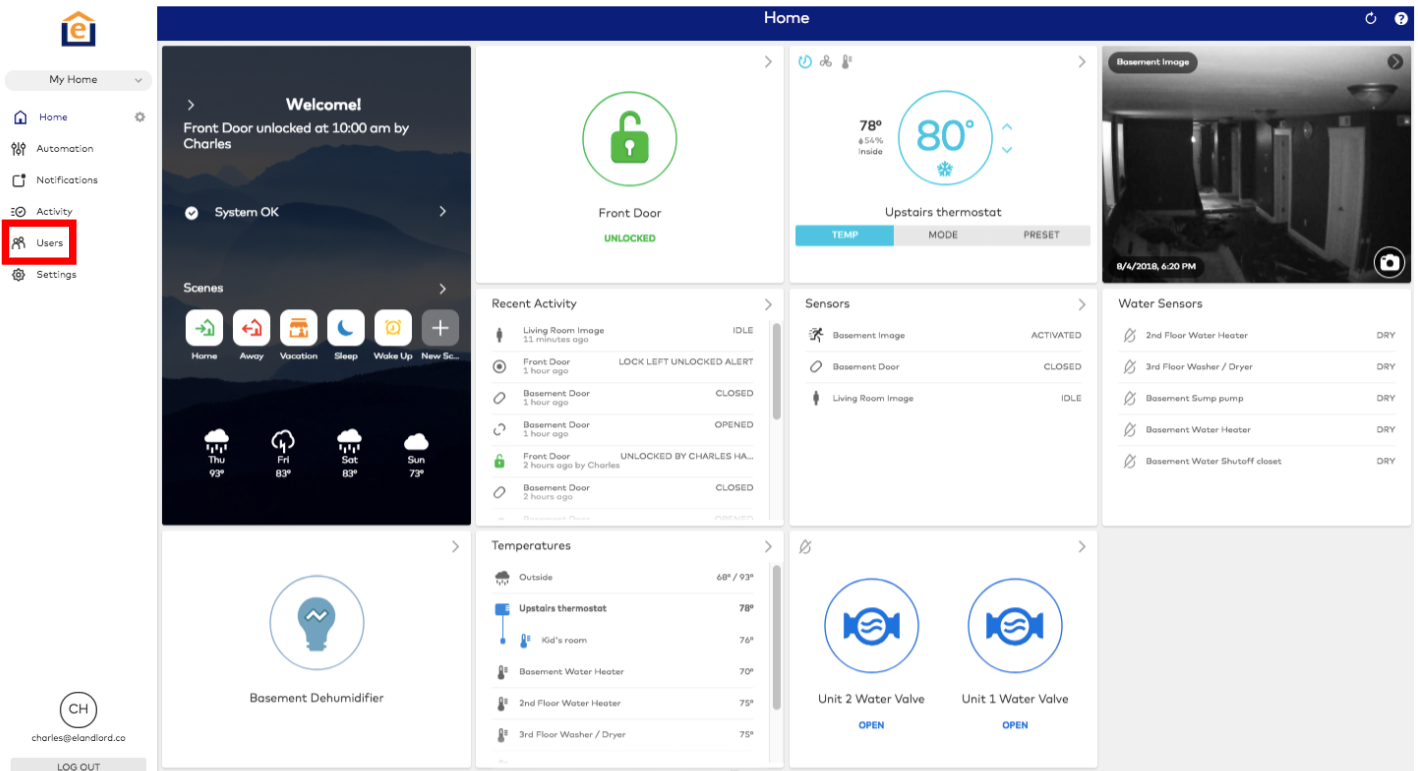
Step 2: Go to “Users” at left side of screen
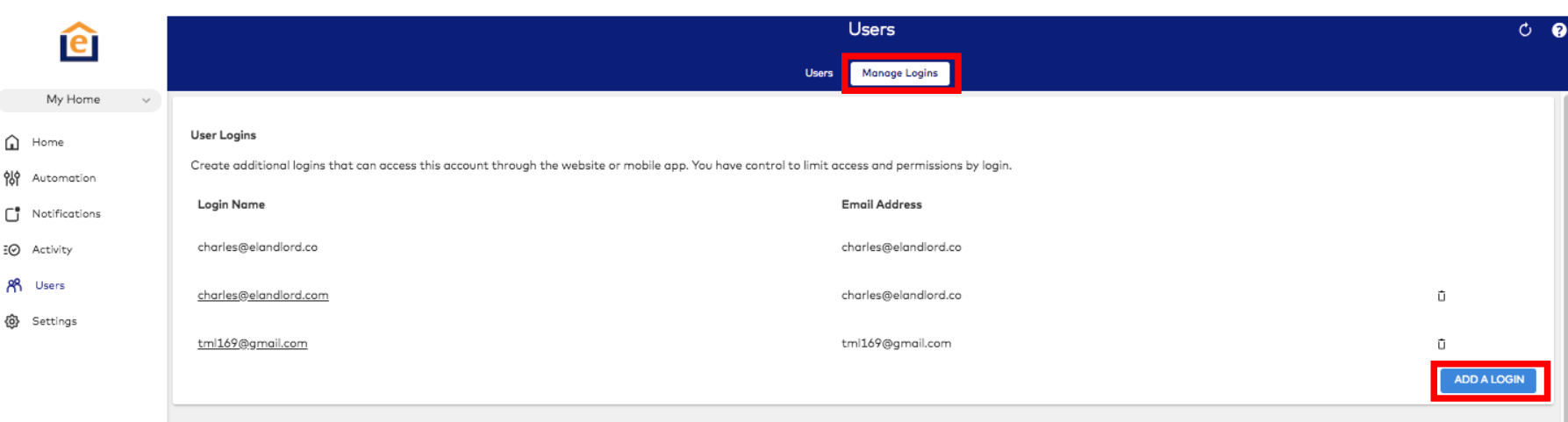
Step 3: Go to “Manage Logins”, and “Add a login”
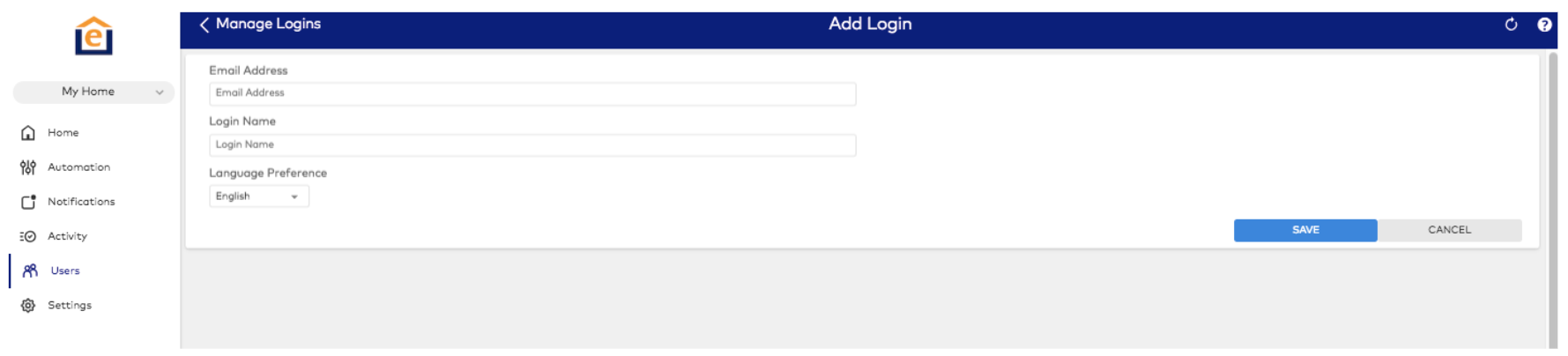
Step 4: Enter email address and login name
Note: We recommend the email address as the login name. If the system does not allow you to enter the email as a login name, they may have another account. In this case we recommend email address minus the “@email.com” (or add a number after for subsequent accounts). You’ll need to tell the new account holder what the login name is. Our system sends the password-only for security reasons.
Example: [email protected], charles, charles1, etc, for accounts 1 - 3.
Step 5: Email address entered will get an email from [email protected] with a temporary password for the new login.
Please provide the login name to the person assigned to the new login. They will be able to reset password during their first login to the website or mobile app

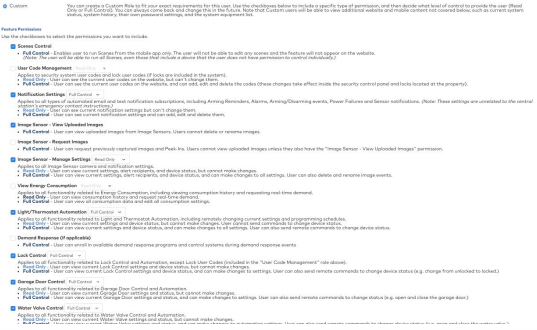
Step 6a: If a dedicated hub is being used for the unit, give Custom Control
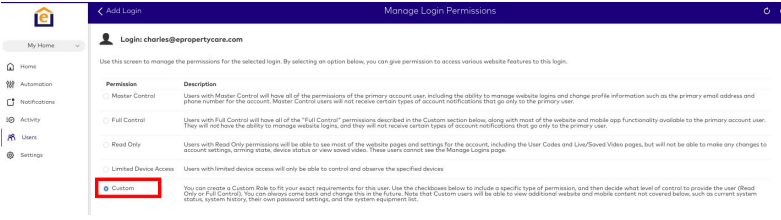
Then select which system components you want visible in their App. Here's what we typically recommend:
Full Control:
- Scenes - tenant can initiate a scene automat
- Lock Control - tenant can remotely lock/unlock
- Garage Control - tenant can remotely open/close
- Light/Thermostat - tenant can remotely control lights and thermostat
- Water Valve Control - tenant can shutoff water
- View Energy Consumption - tenant can view energy consumed with external smart
switch
No Control:
- Use code management: You most likely don’t want tenants adding or editing lock
codes
- Image sensor settings
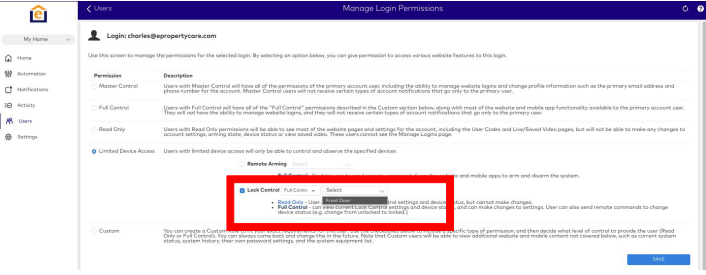
Step 6b: If a SHARED hub is being used for the property (where same hub is being used to control the locks of multiple units), give Limited Device Access.
When modem is shared across multiple properties the only functionality you can provide
tenants via app is lock control (otherwise they will be able to control each other’s
thermostat, lights, etc.)
- Select full control, and select the correct lock for the given tenant login
Step 7: Have new user login via mobile app or website with the login name you provide, and the password they receive through our system.