This article shows you how to create a Resident App login in the PointCentral system for a shared hub scenario. Note this requires an additional step to prevent the resident from accessing all locks on the system (including those for other units).
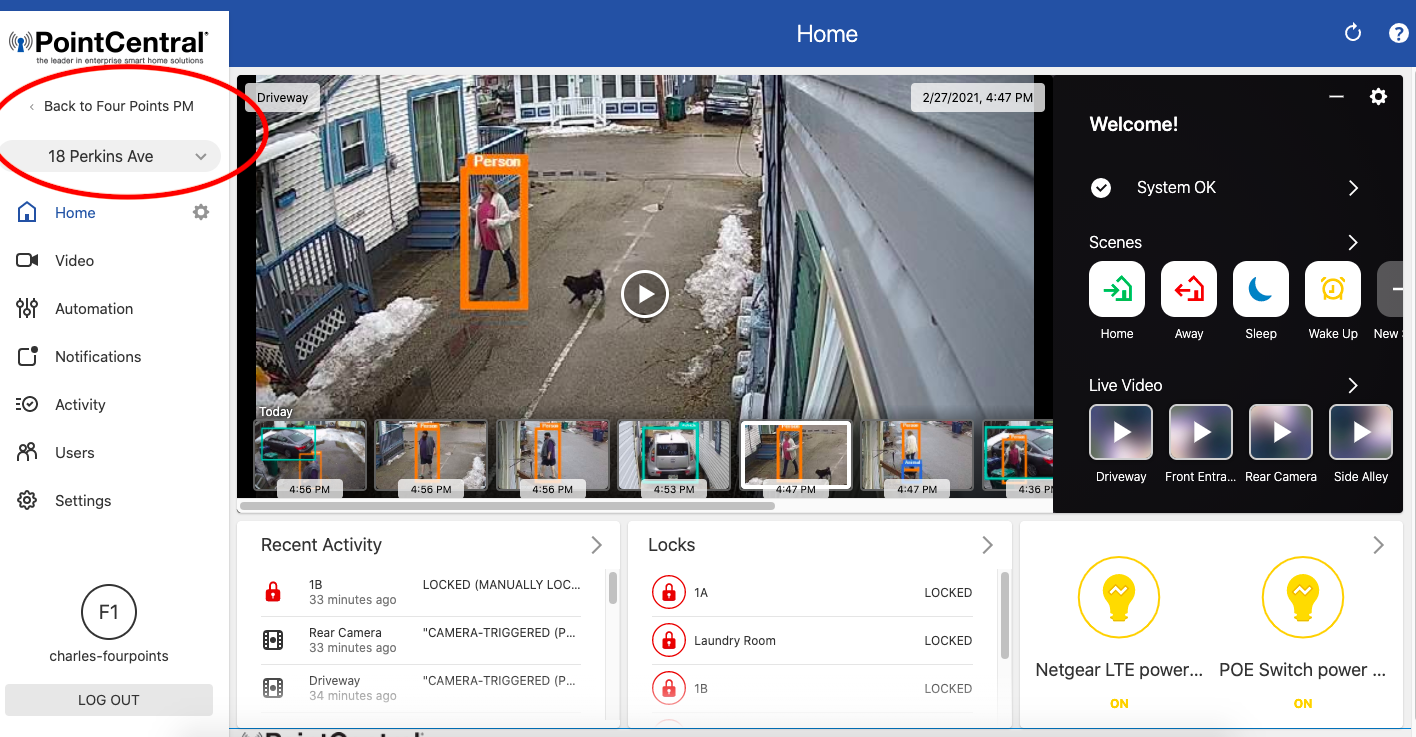
1. Login to PointCentral and go into the Individual unit (note the property under the Group level)
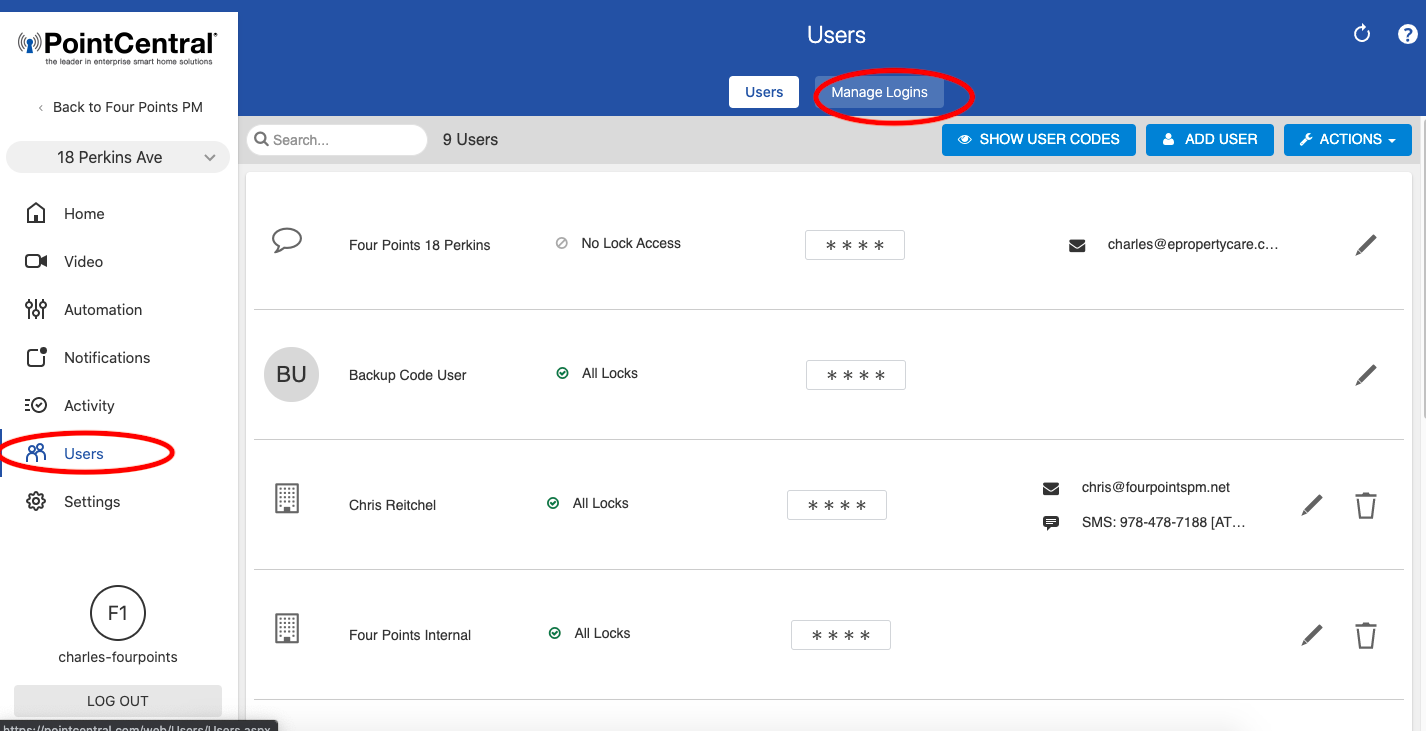
2. Go to "Users" then "Manage Logins" at the top
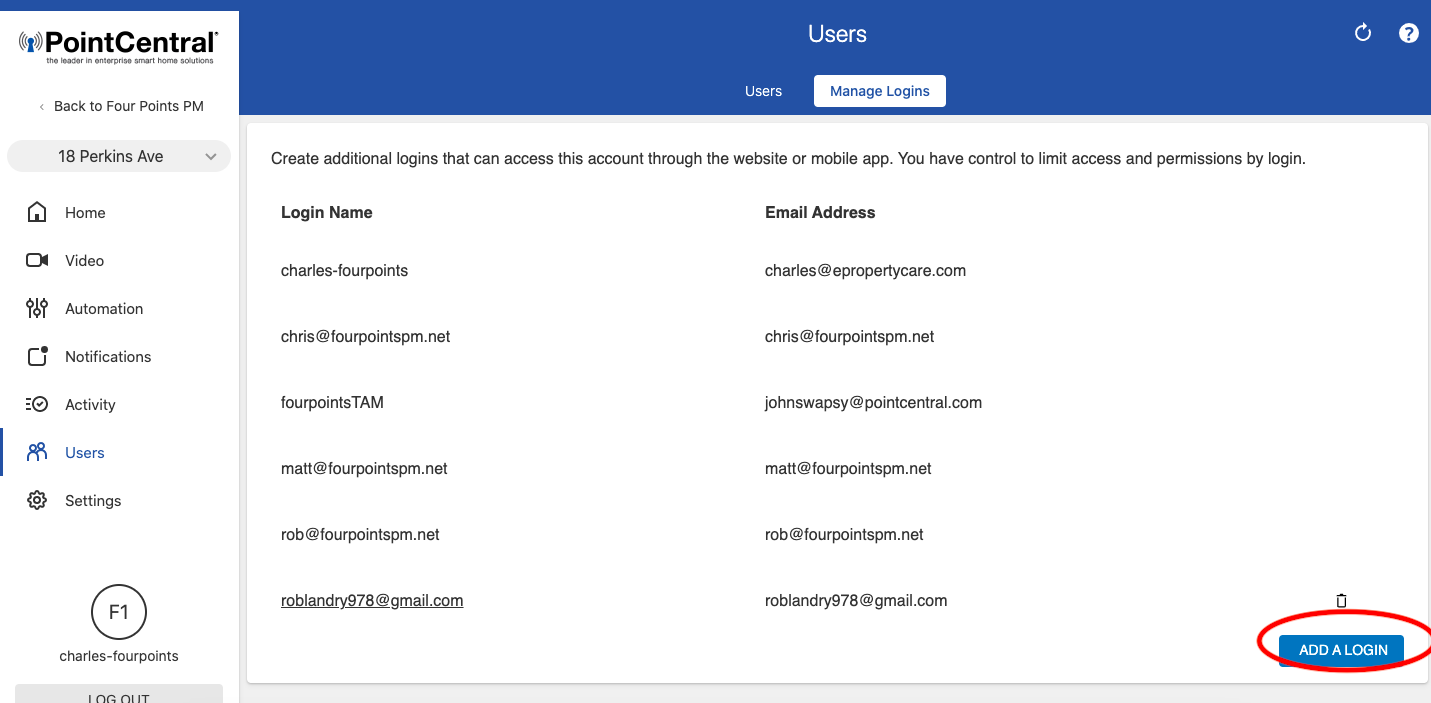
3. Click "Add Login"
4. Enter email address of resident and login name (I suggest using email address as Login Name unless it's already taken. If taken, then edit the login name. Then click "Save"
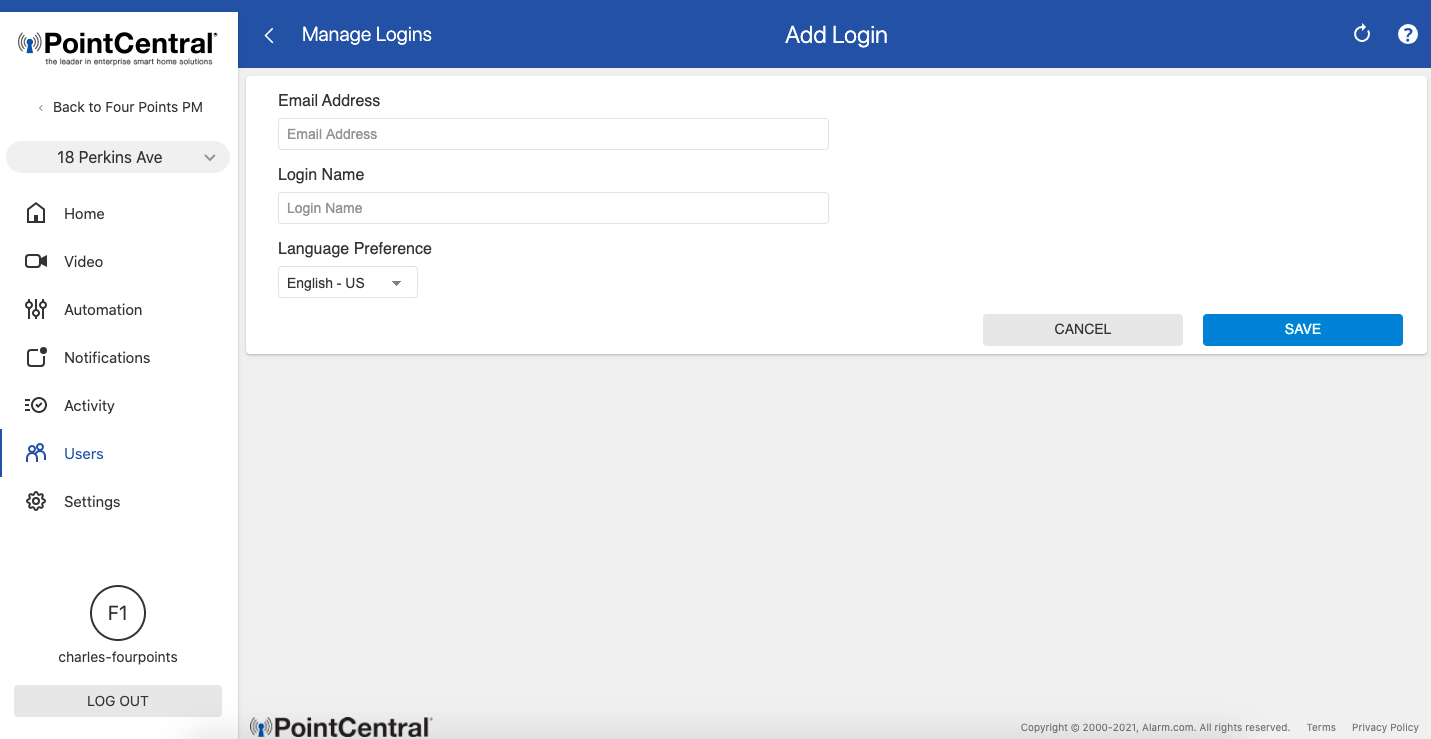
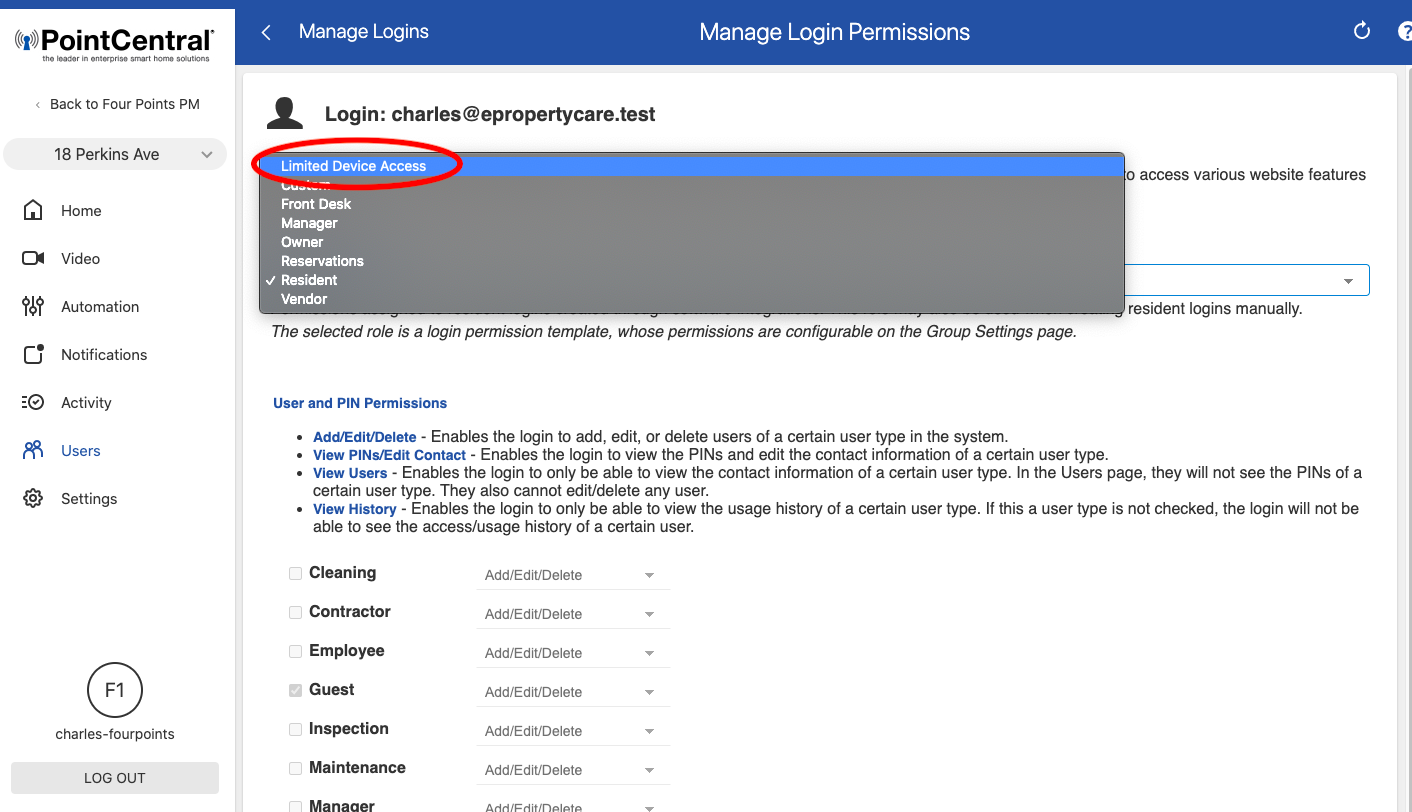
5. From the drop down menu select "Limited Device Access" then click "Save" at the bottom.
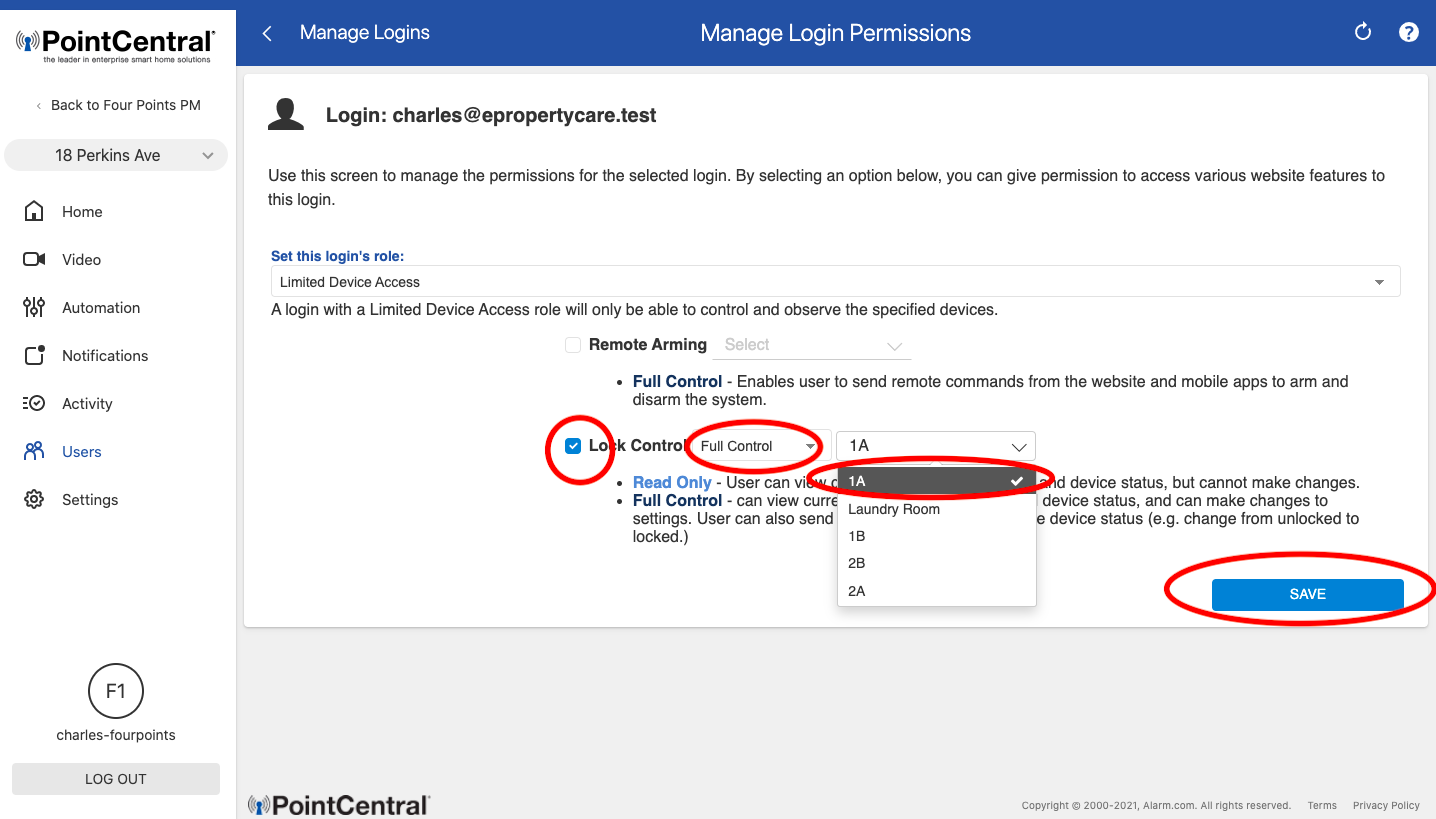
6. The select "Lock Control", then "Full Control", the from the drop down menu select which locks you want the user to have access to. Then click "Save".
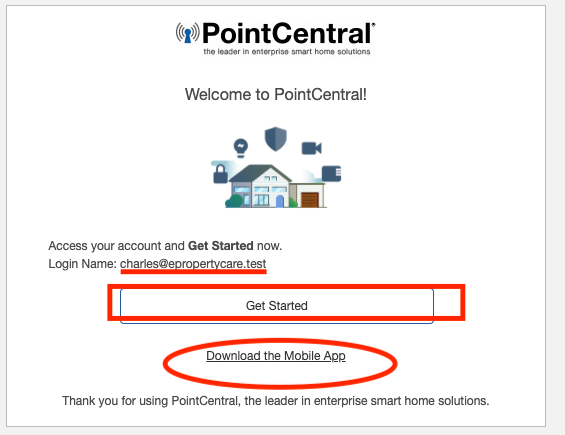
7. Resident will receive an email stating "Welcome to PointCentral" that lists their user name, includes a link to setup their login, and a link to download the App.
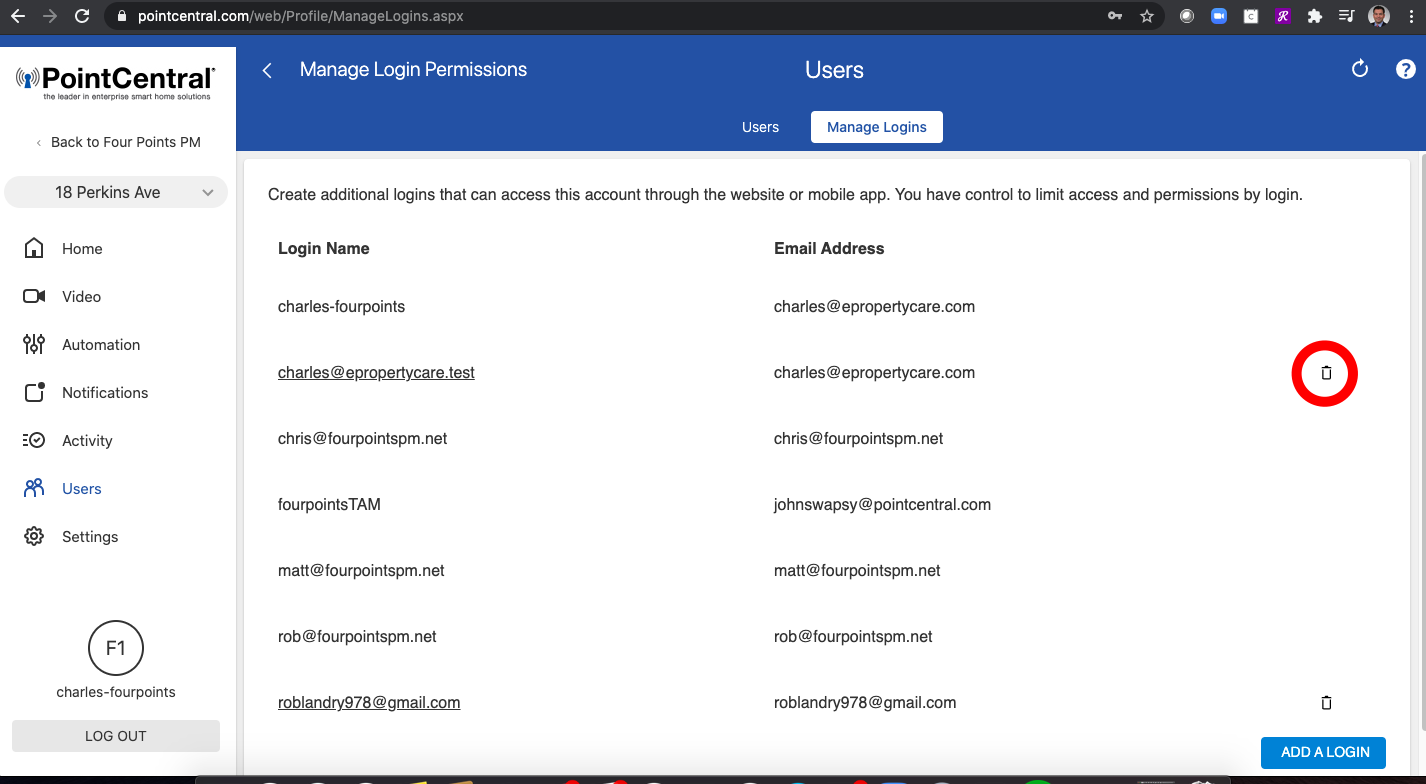
7. To delete the resident, in the main Manage Logins section you can click the "Trash" icon next to the login you want to delete. The resident will no longer be able to use the App to control the system.