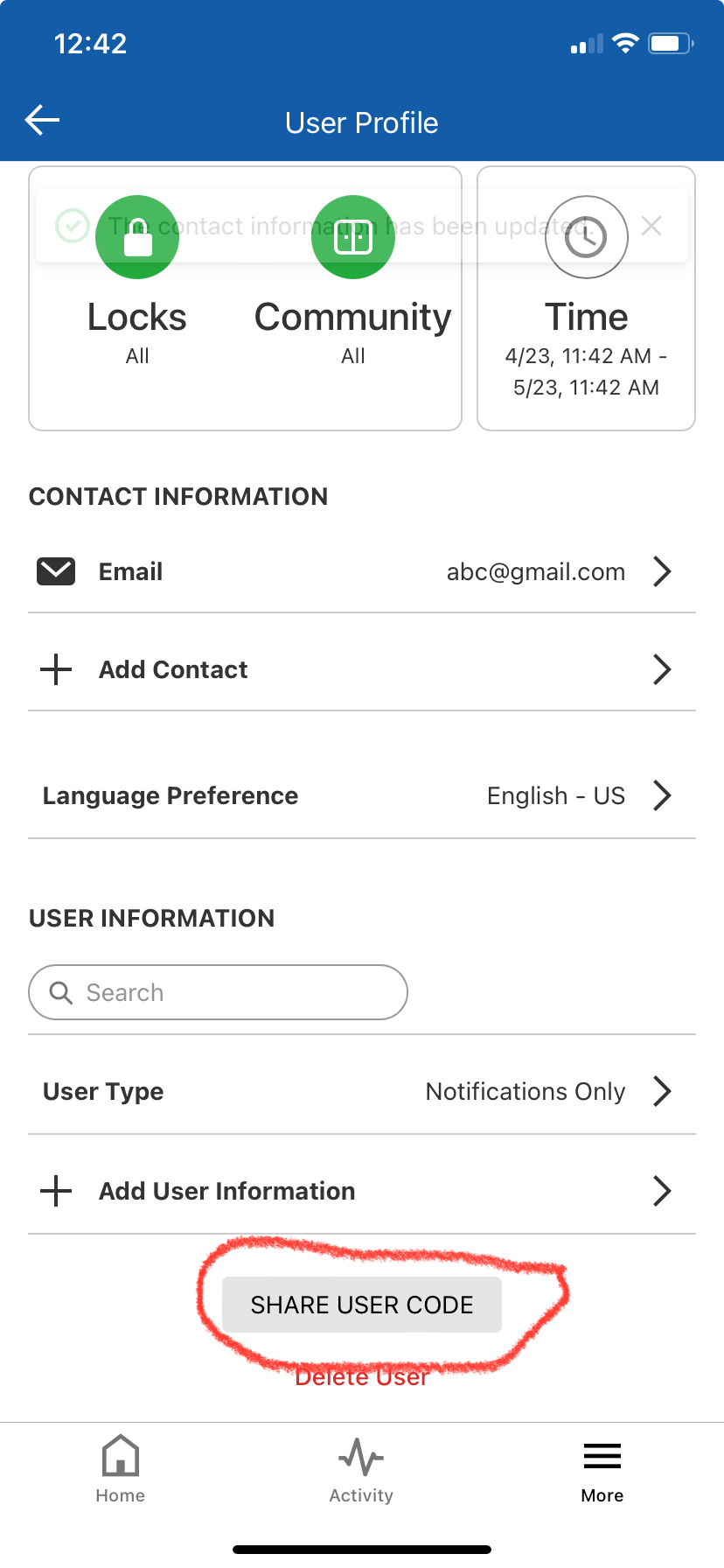
This article shows how to create a user code for a short-term rental owner that syncs the code with building access control. This is for The Muse HOA owners.
How to do via the Website login:
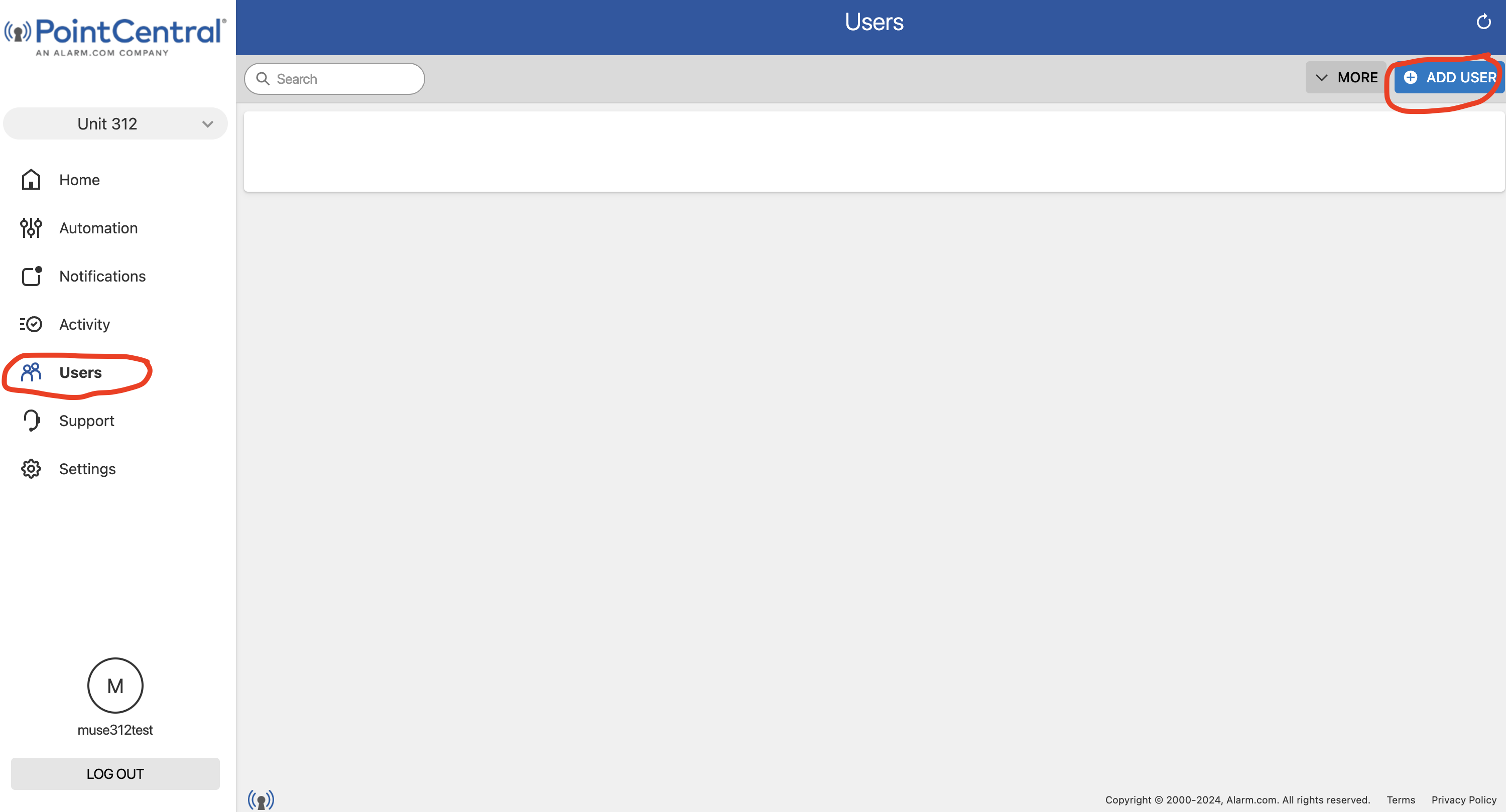
1) Login to the pointcentral website and go to "Users" in left menu, and then select "Add user" in top right
2) Enter name of guest and select "create" at bottom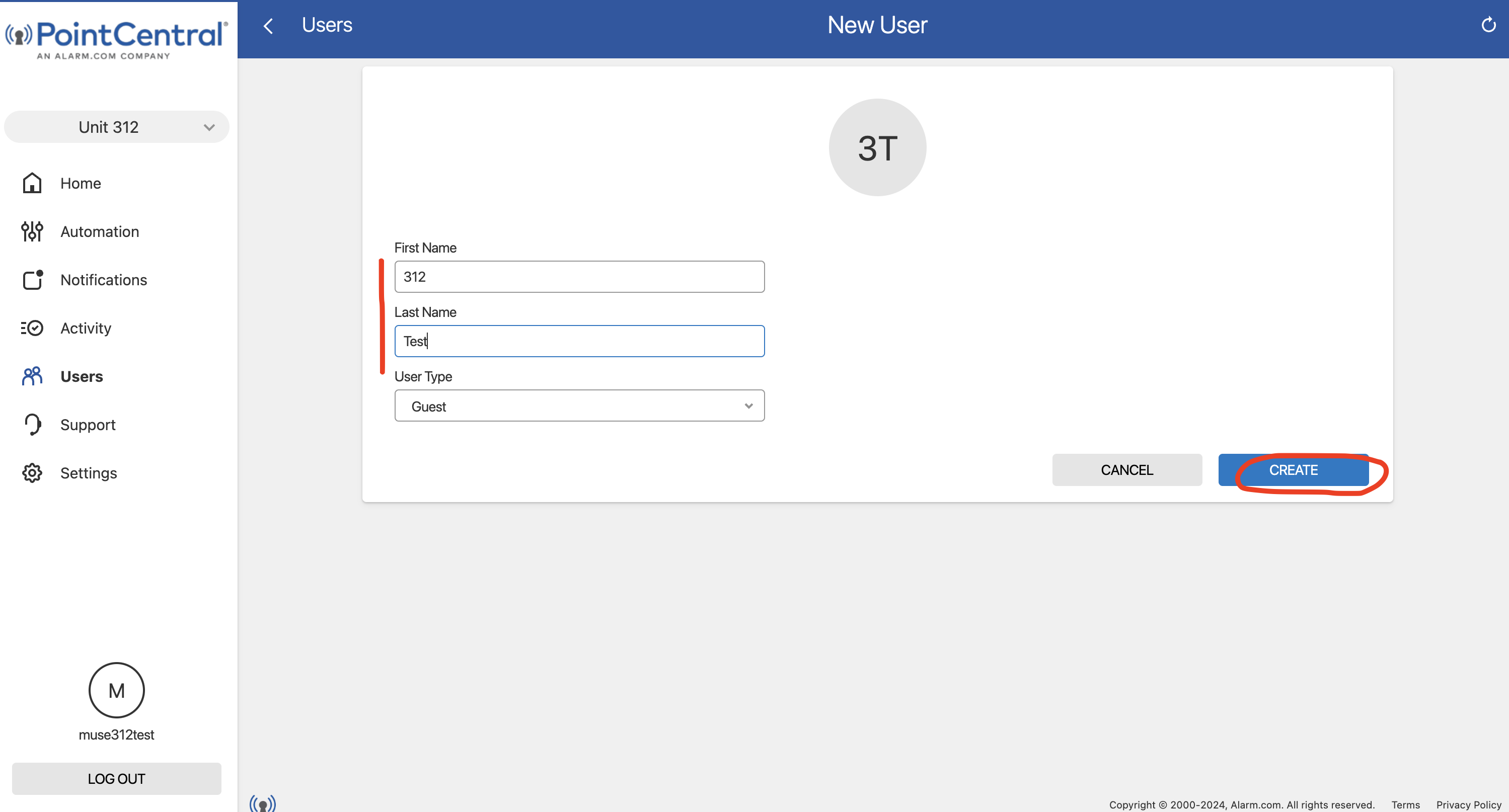
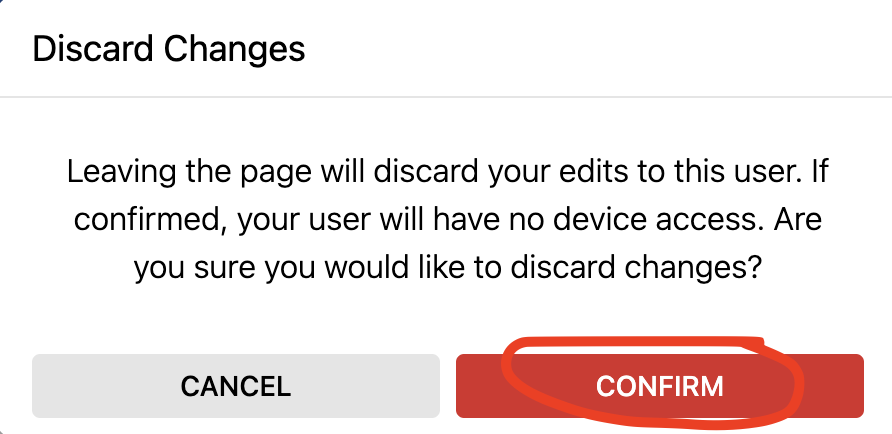
3) Select "CANCEL" and then click "confirm" to discard changes. 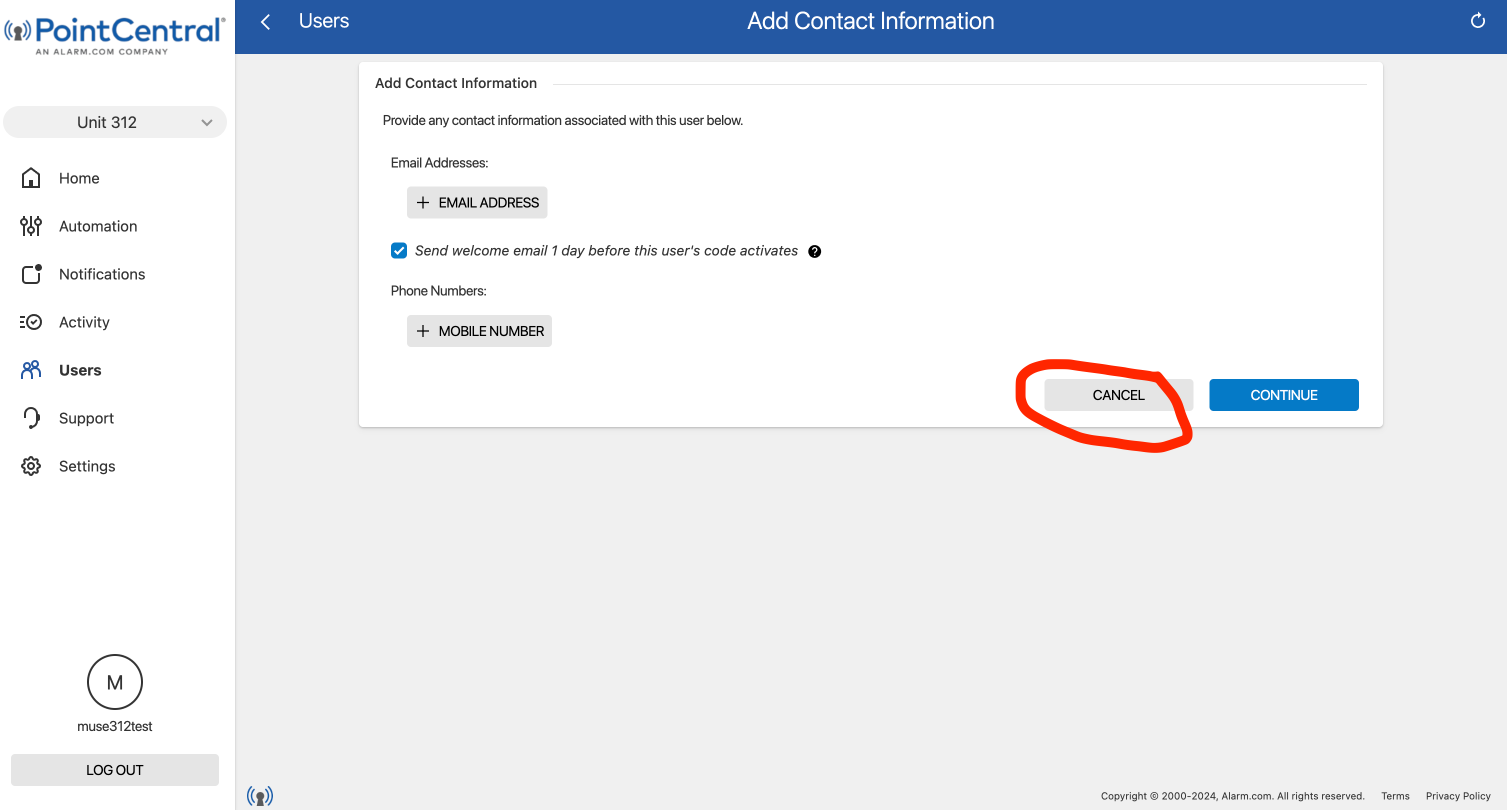
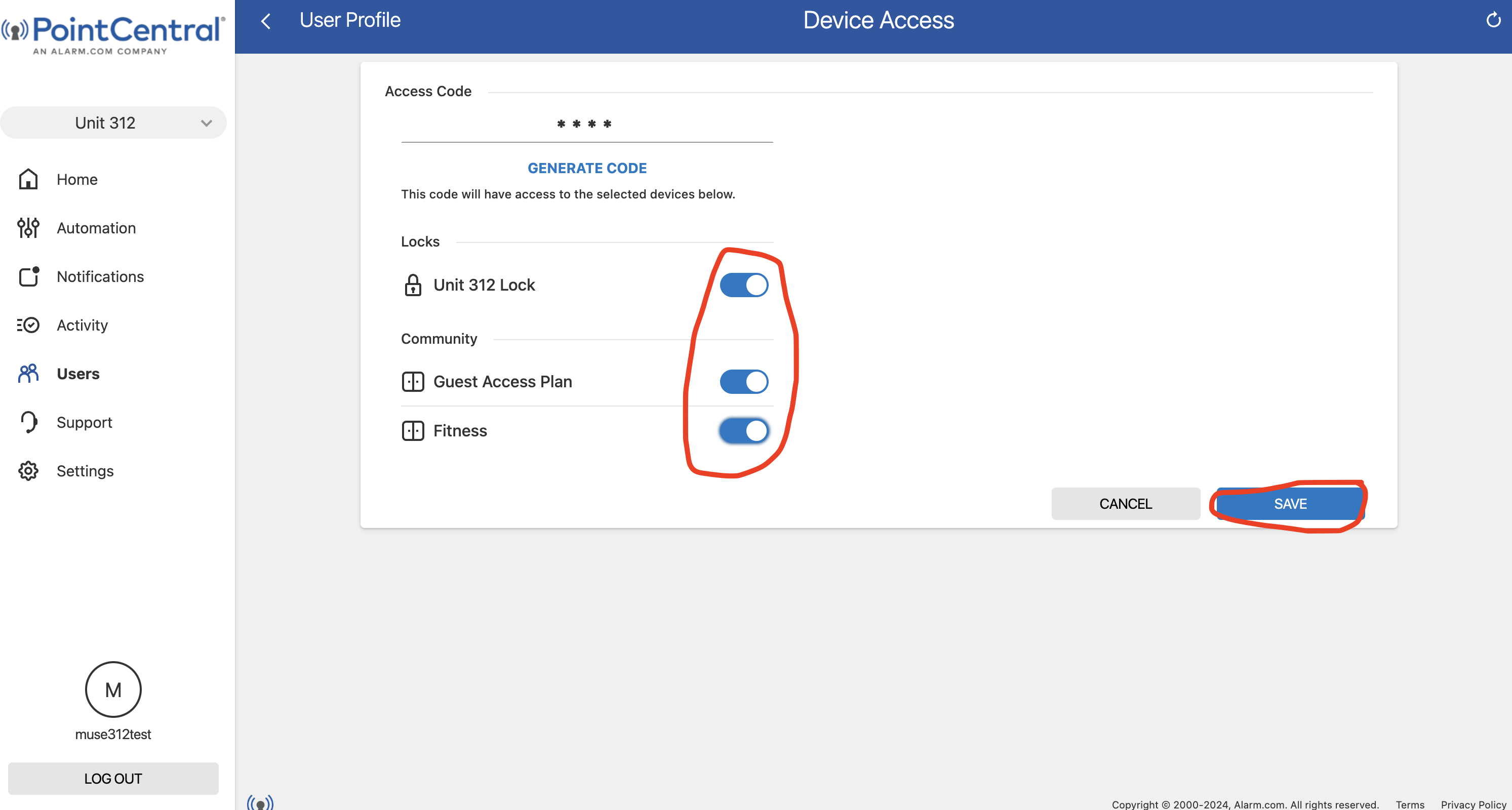
4) Click on the Locks / Community access area and choose the applicable door lock and access plan you want to add the guest to. Then select "Save" in the bottom right.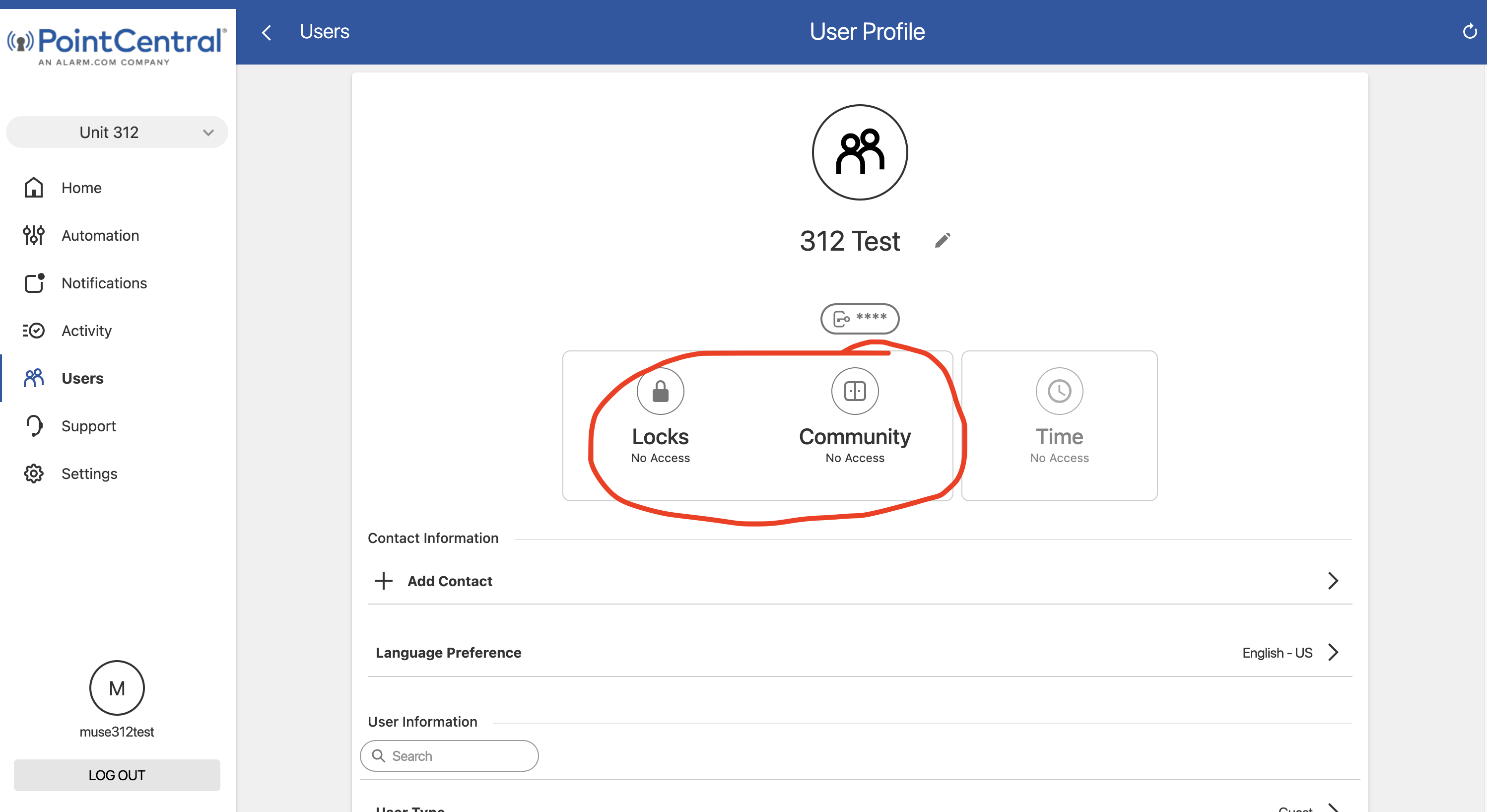
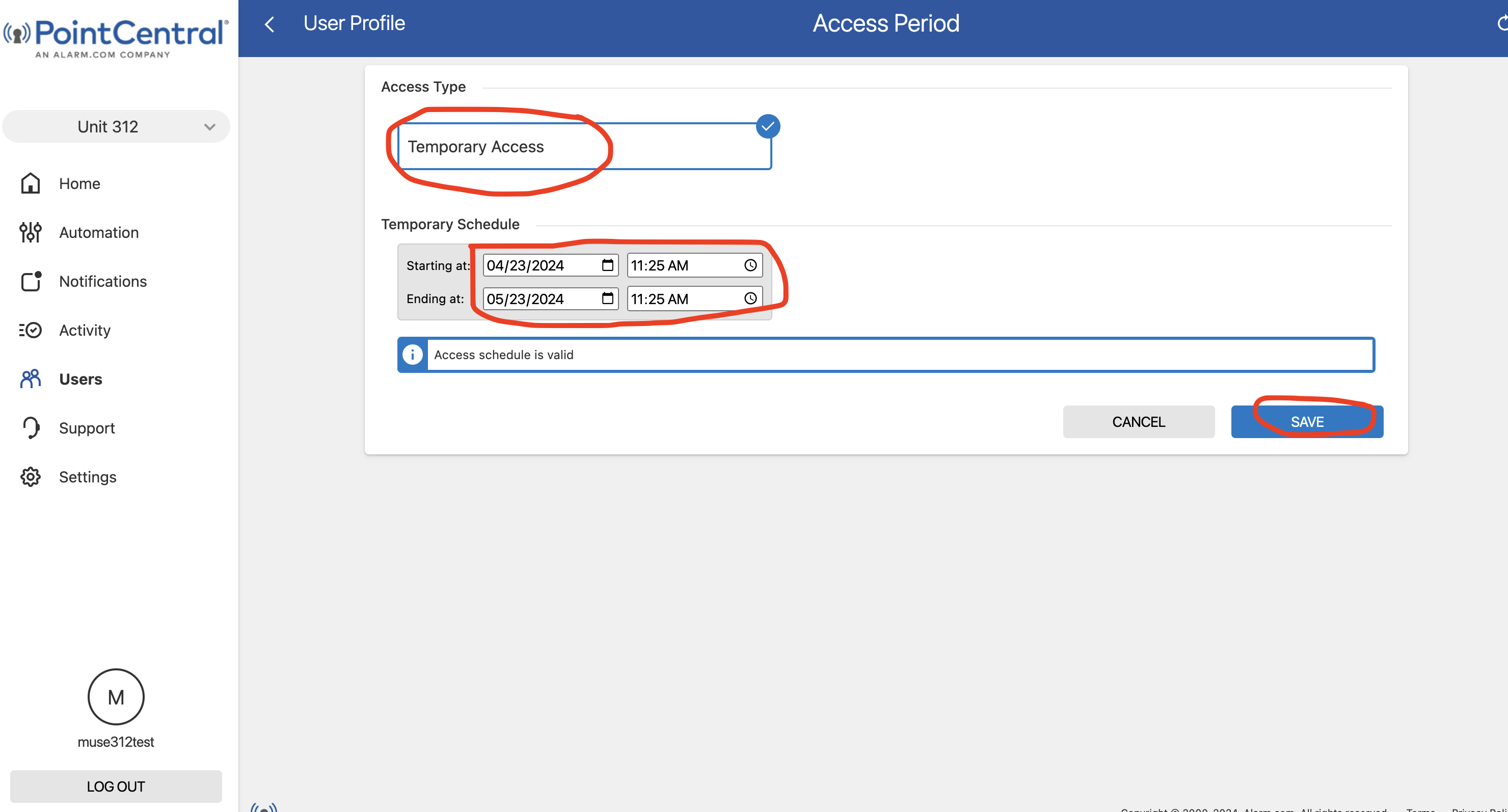
5) If you want to select a limited timeframe for the code, select "Time" and then click "temporary access", choose code dates you want active, then click "Save" in the bottom. 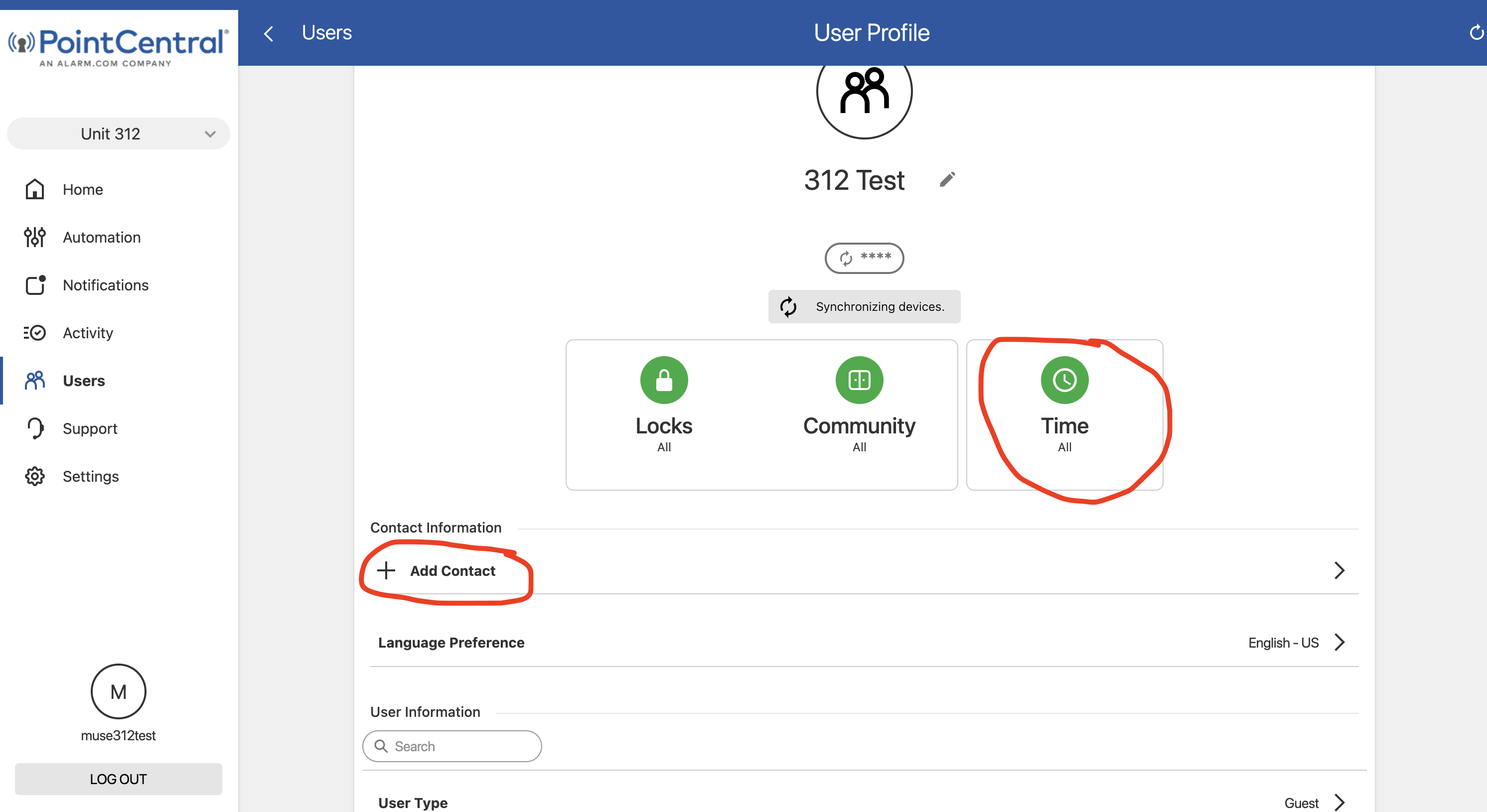
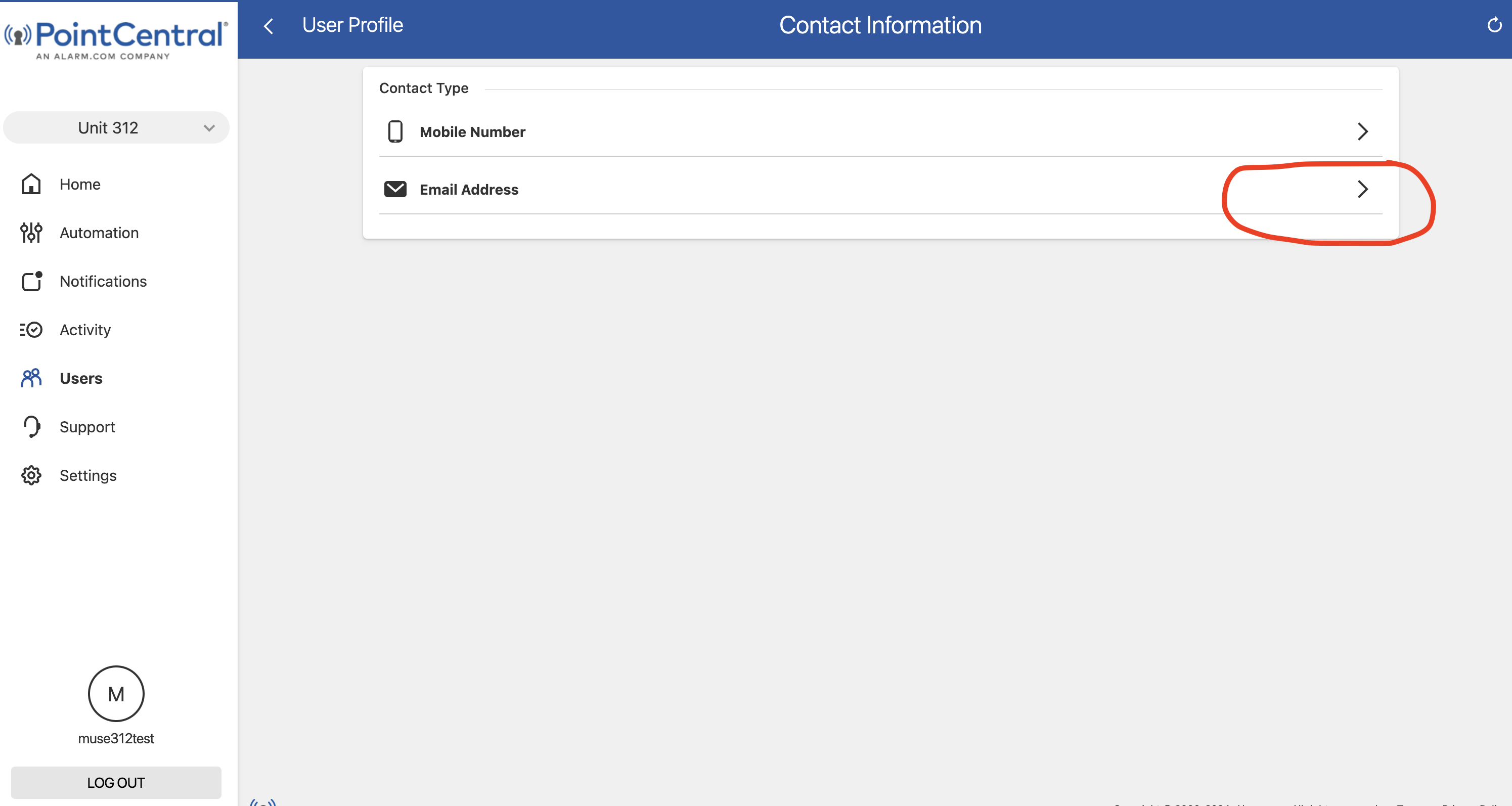
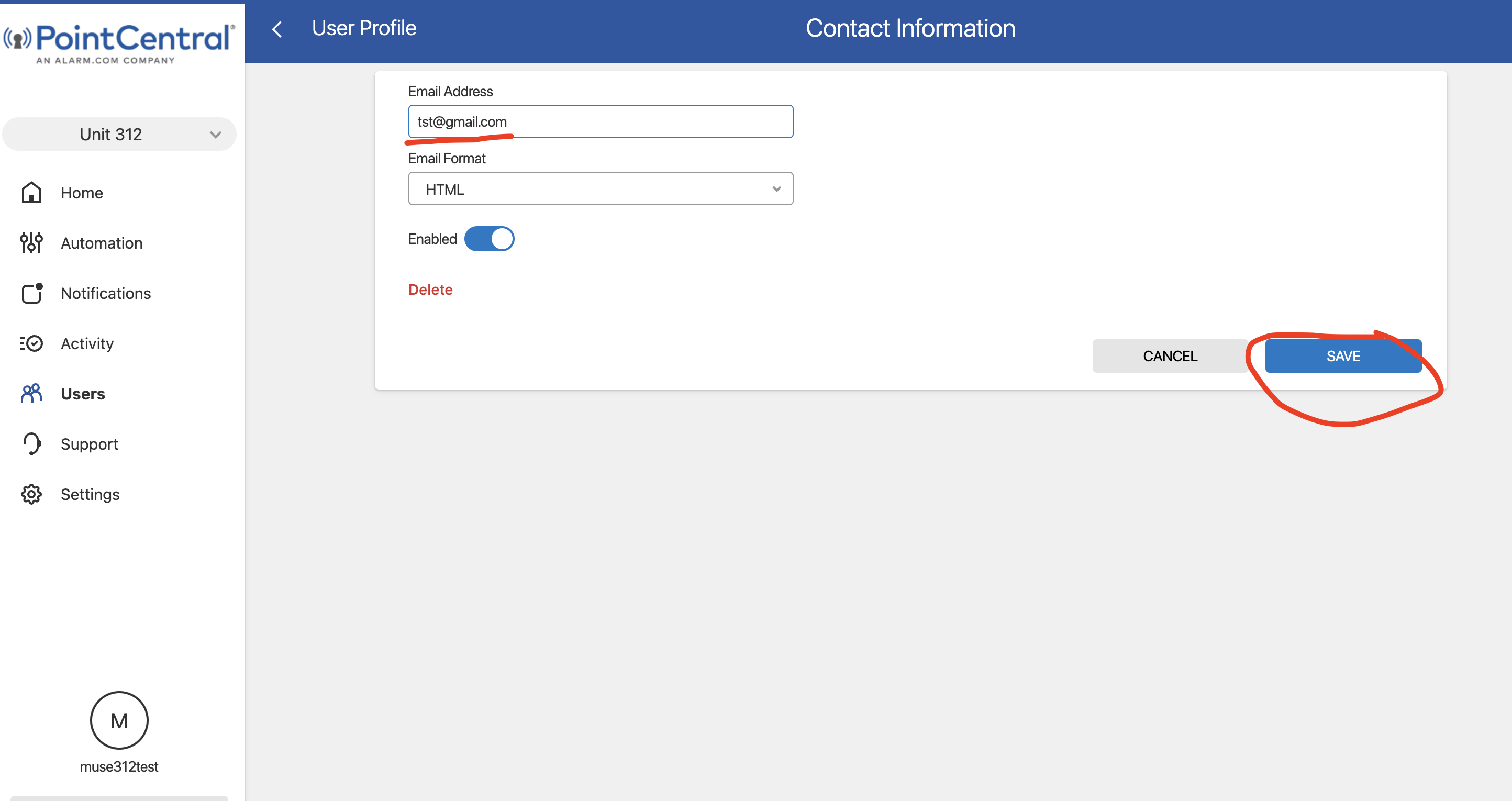
6) For the user contact, click "add contact", "email address", enter user email address, and "save". The click "share user code" at bottom, and select by email.
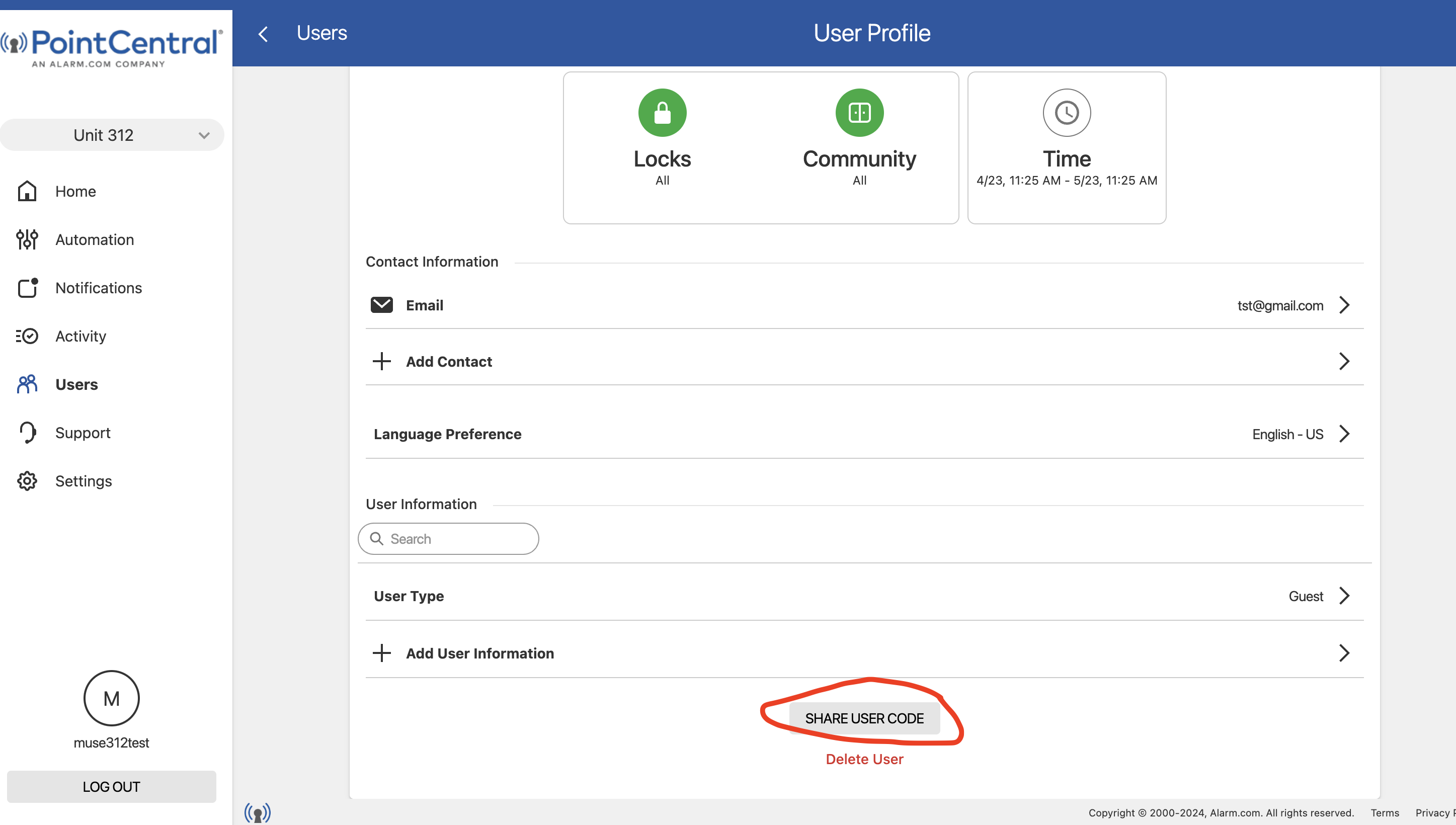
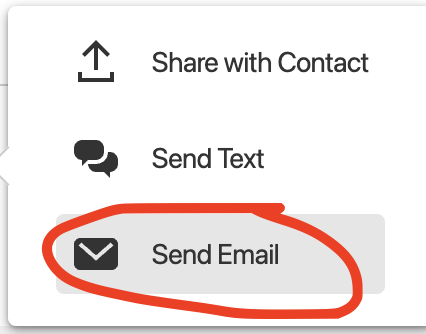
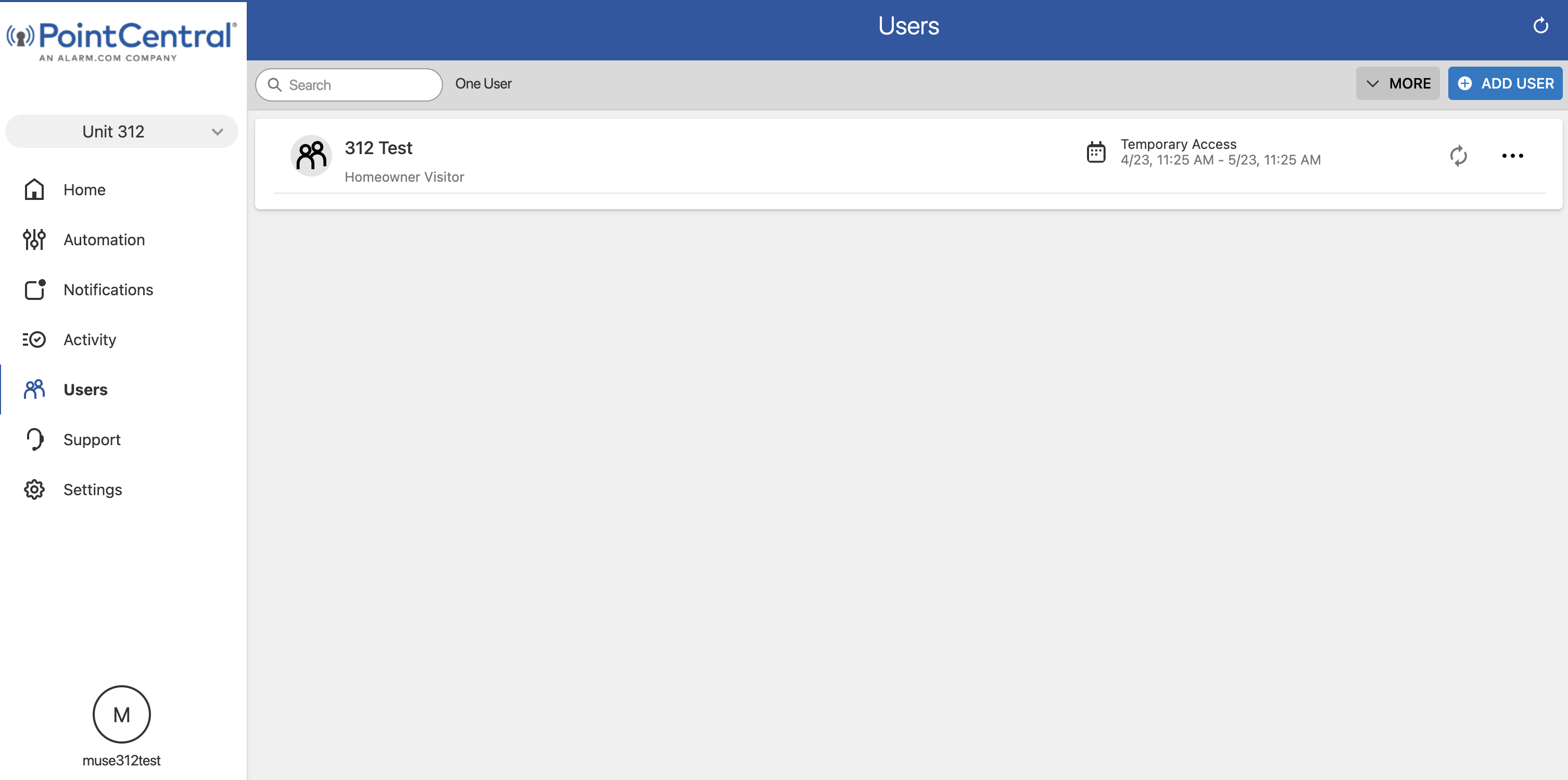
7) You'll then see the user in the system
BY APP:
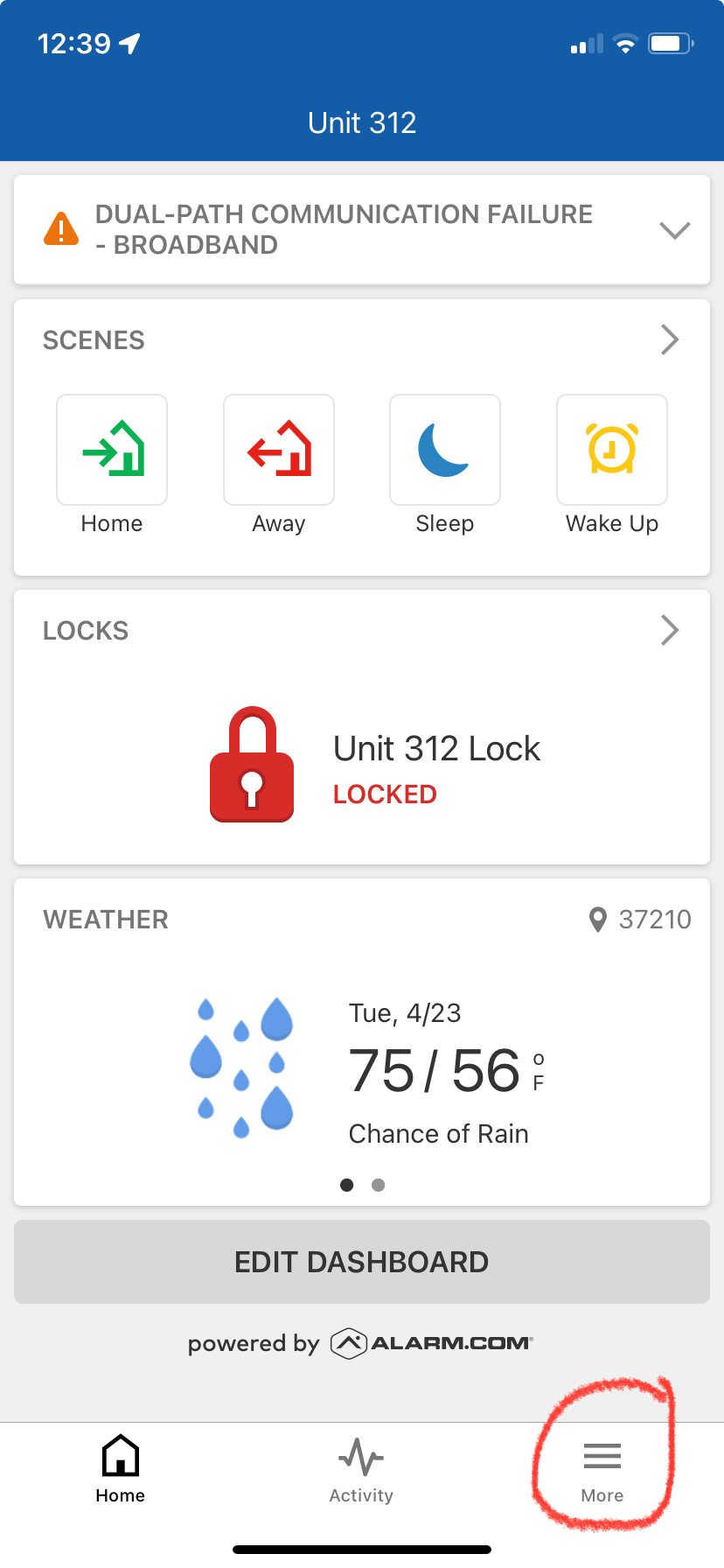
1) Login to the App and click "MORE" at the bottom, then "Users", then "+" at top to create a new user.
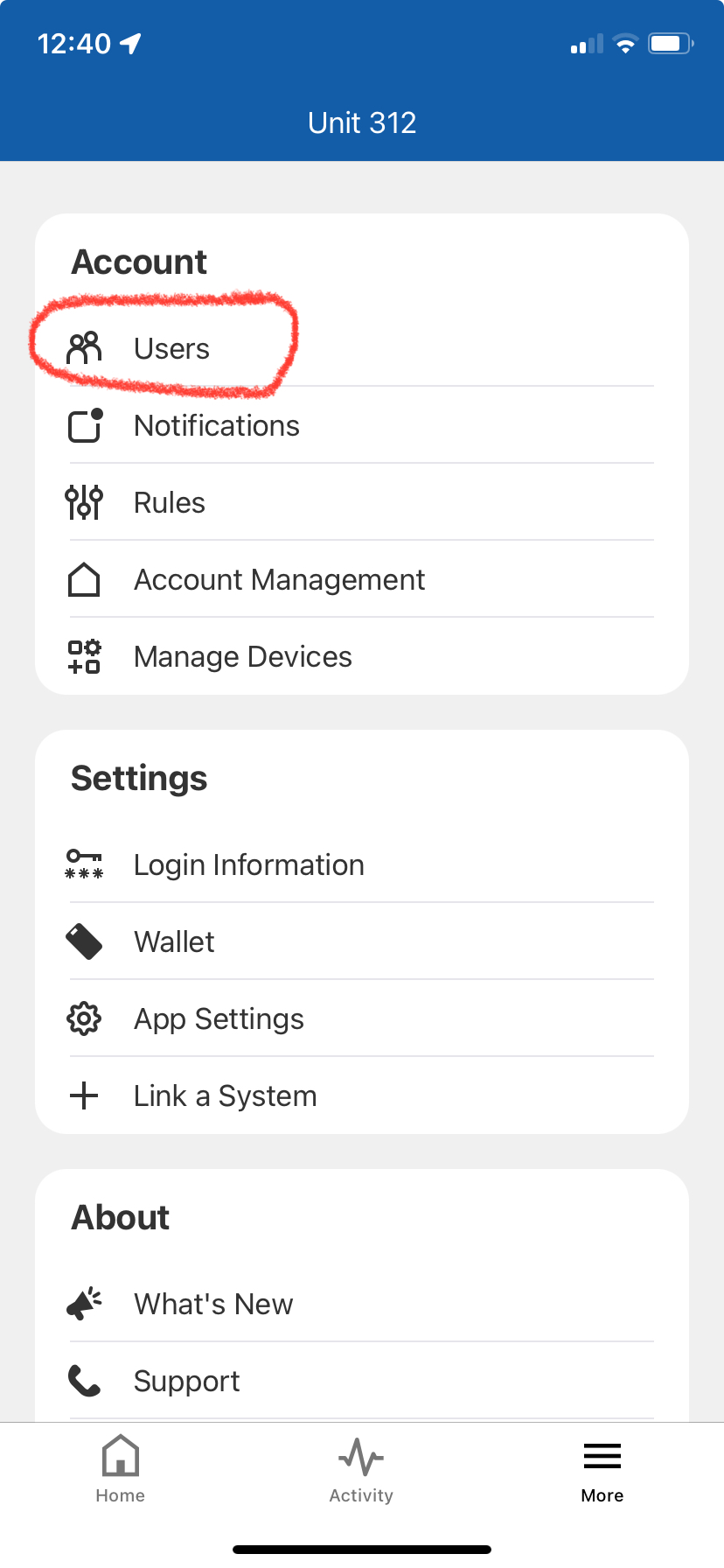
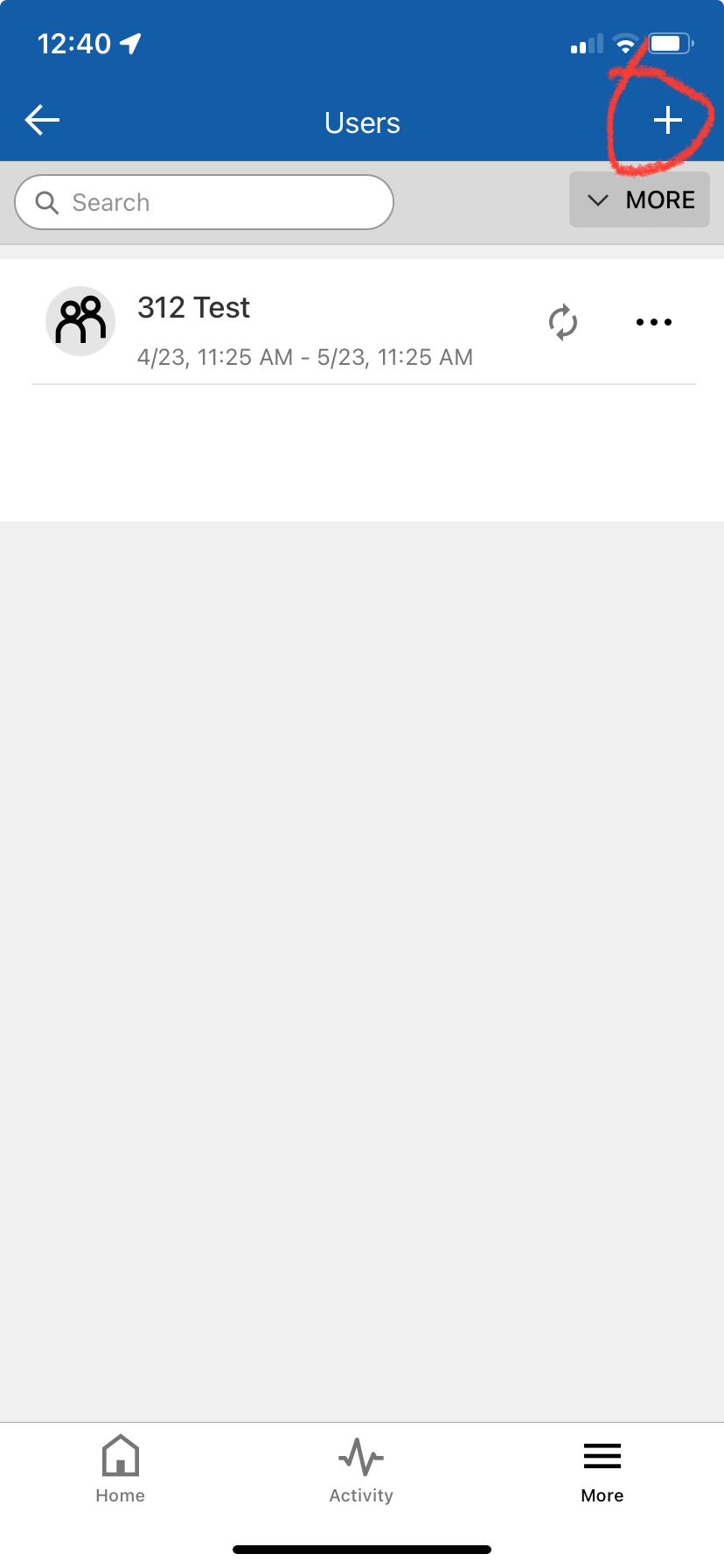
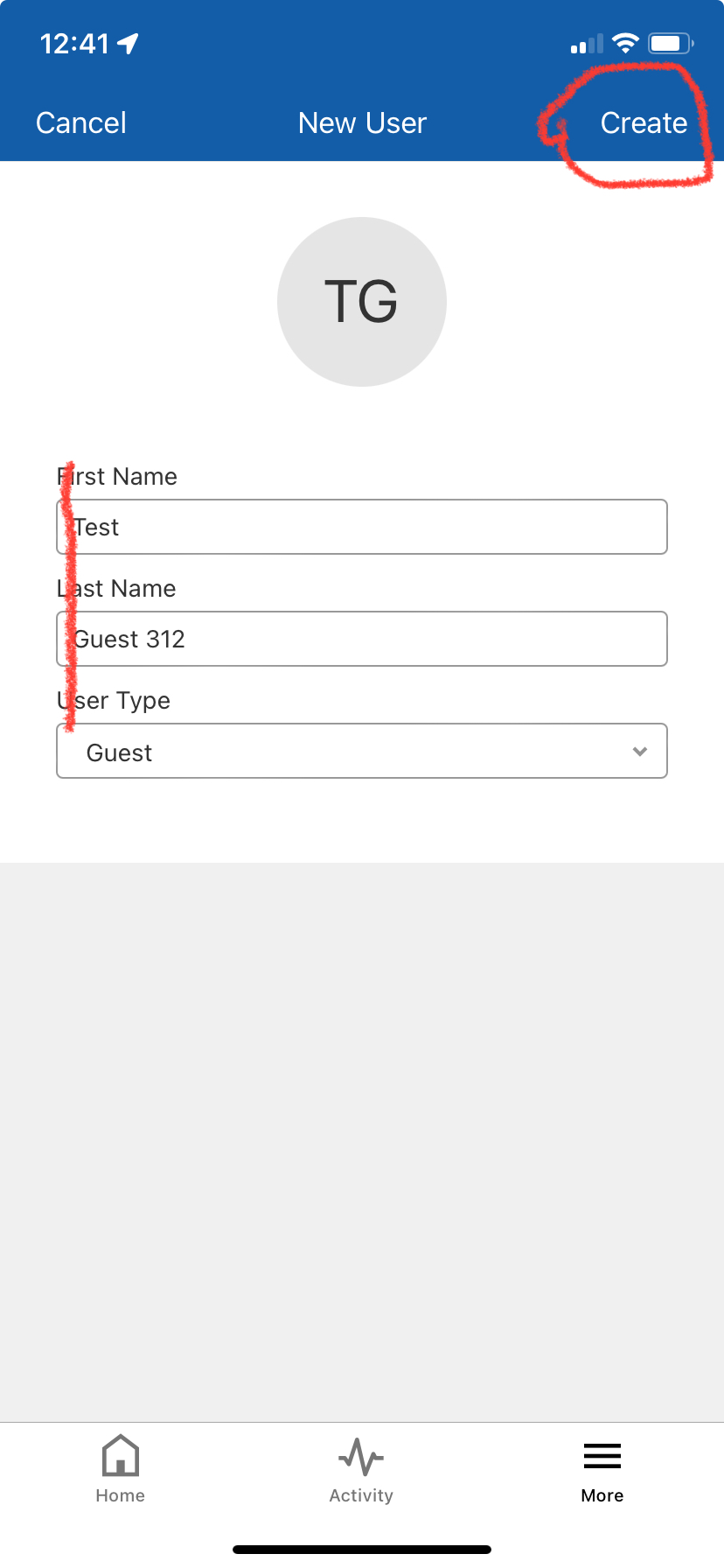
2) Enter user name then click "Create" at top
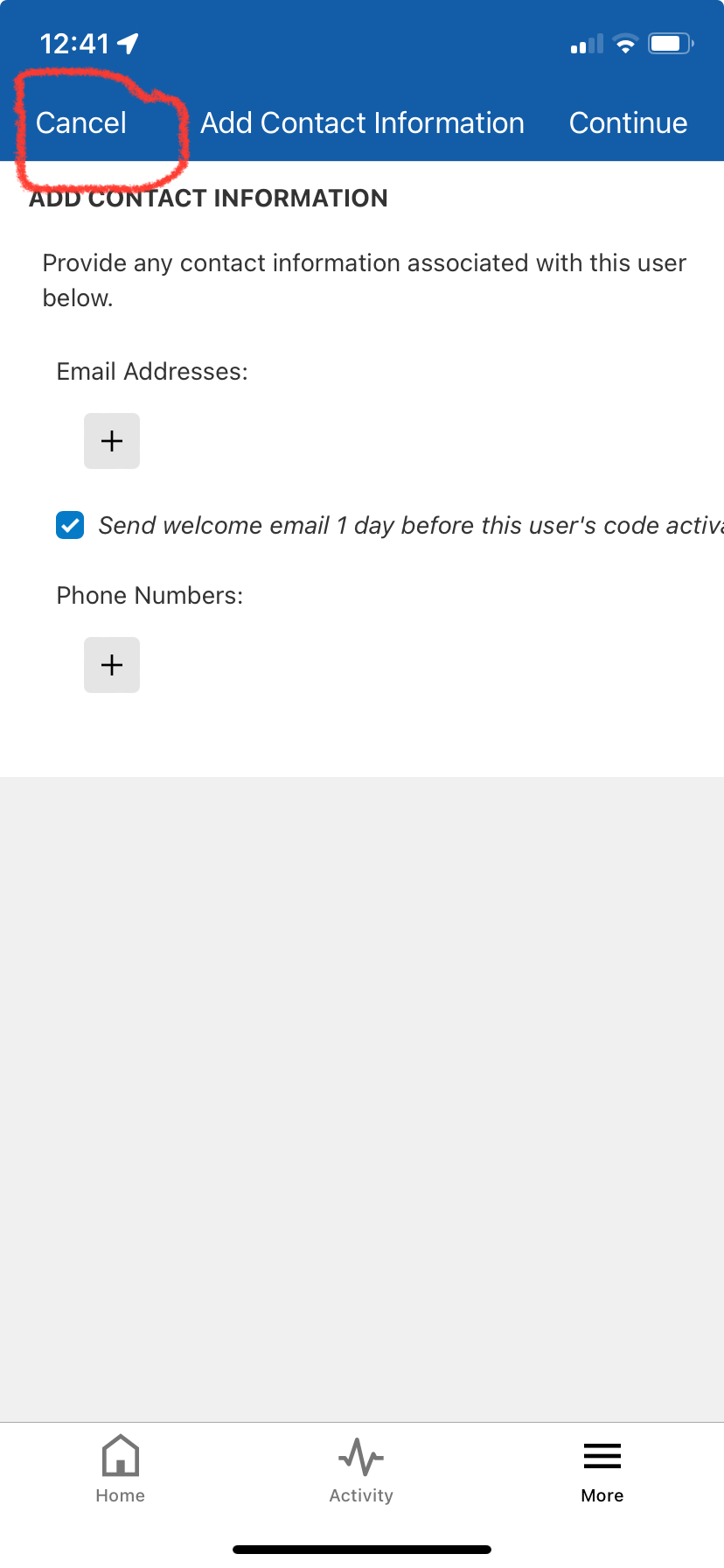
3) Select "Cancel" and then confirm discard changes
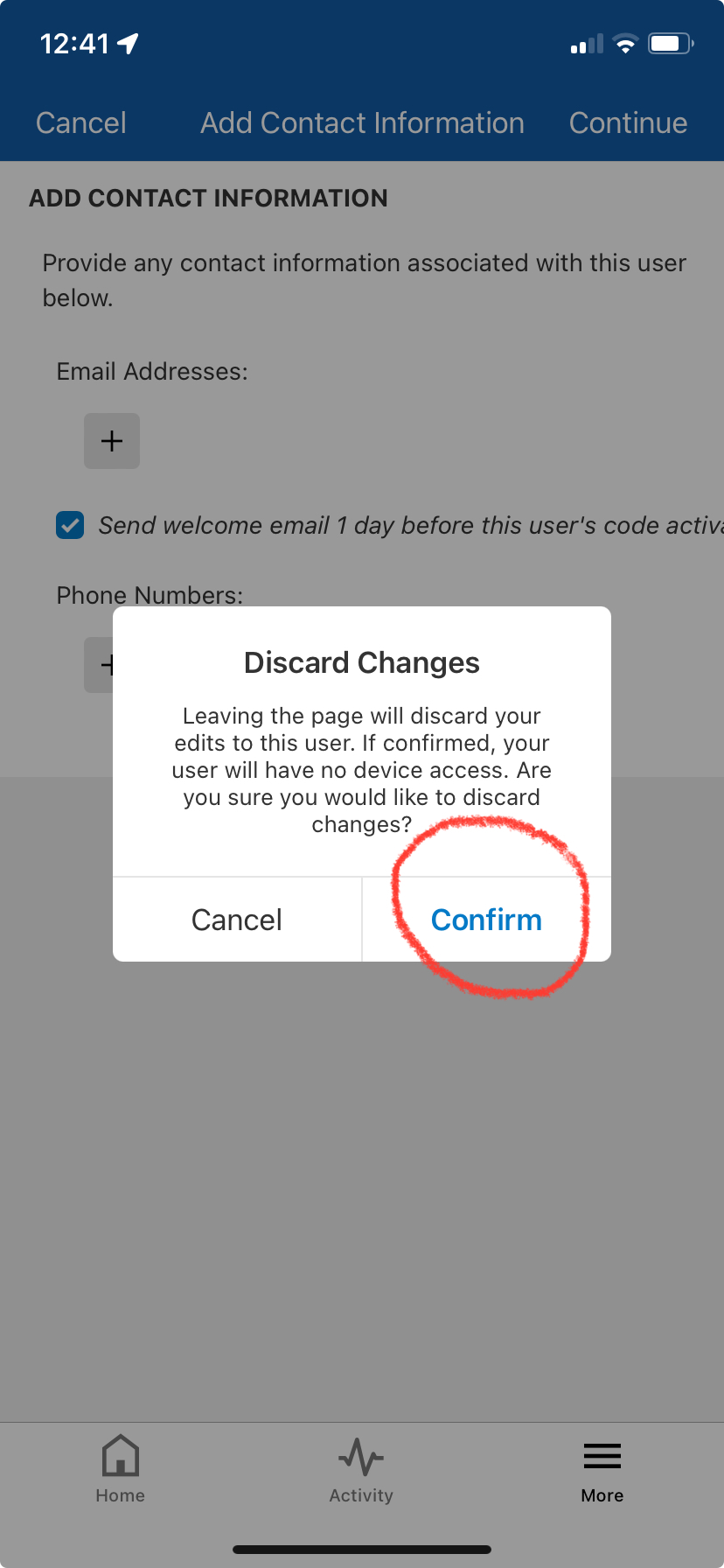
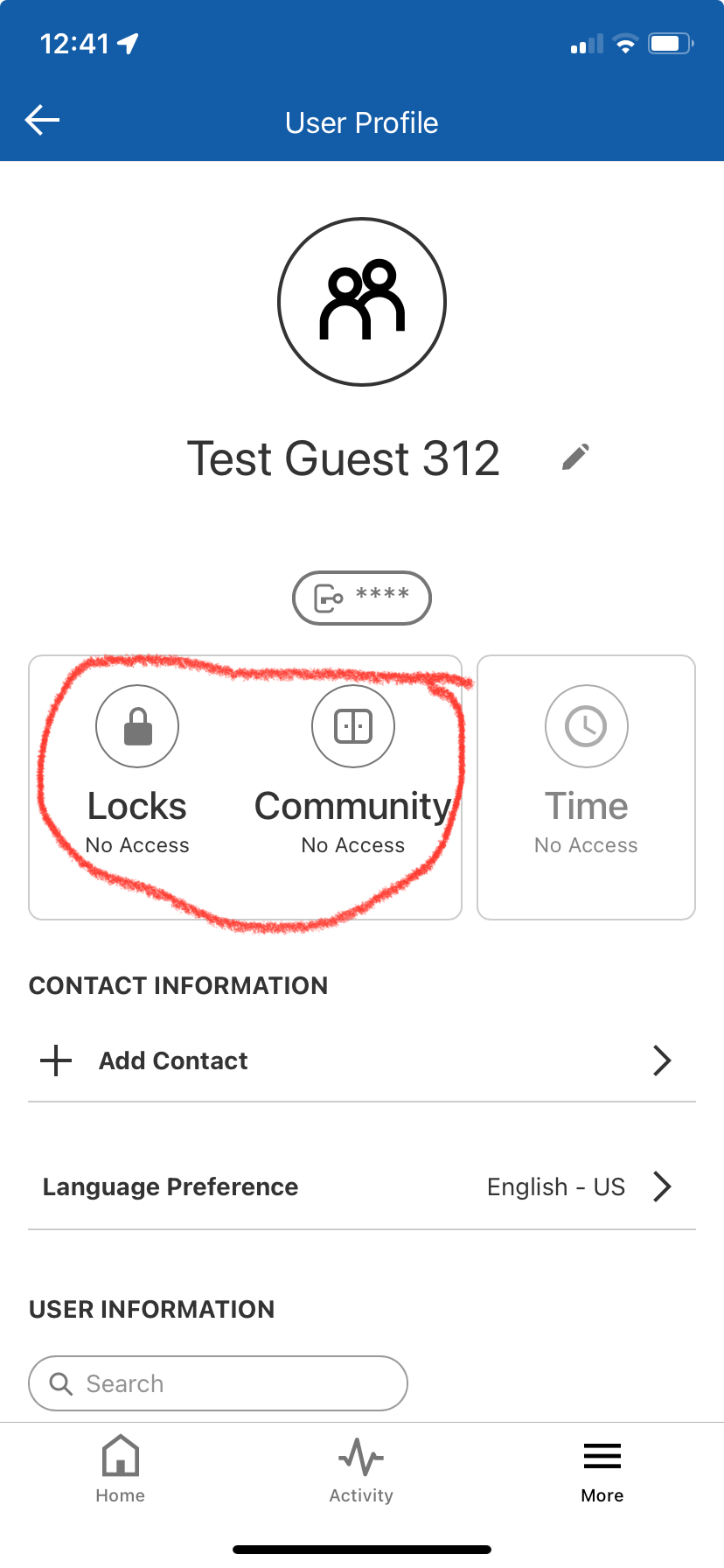
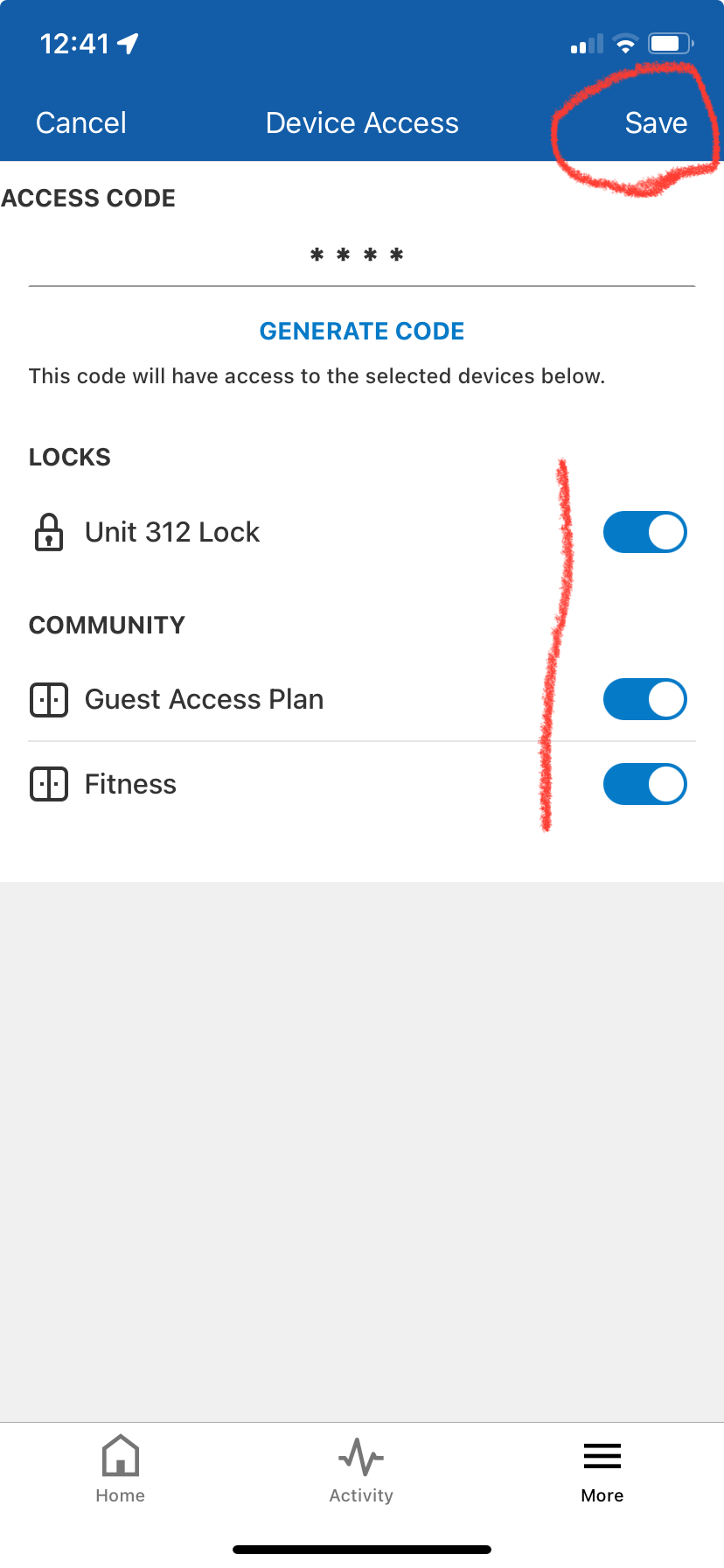
4) Select "Locks / Community Access", choose applicable locks and building access plans, and click "save"
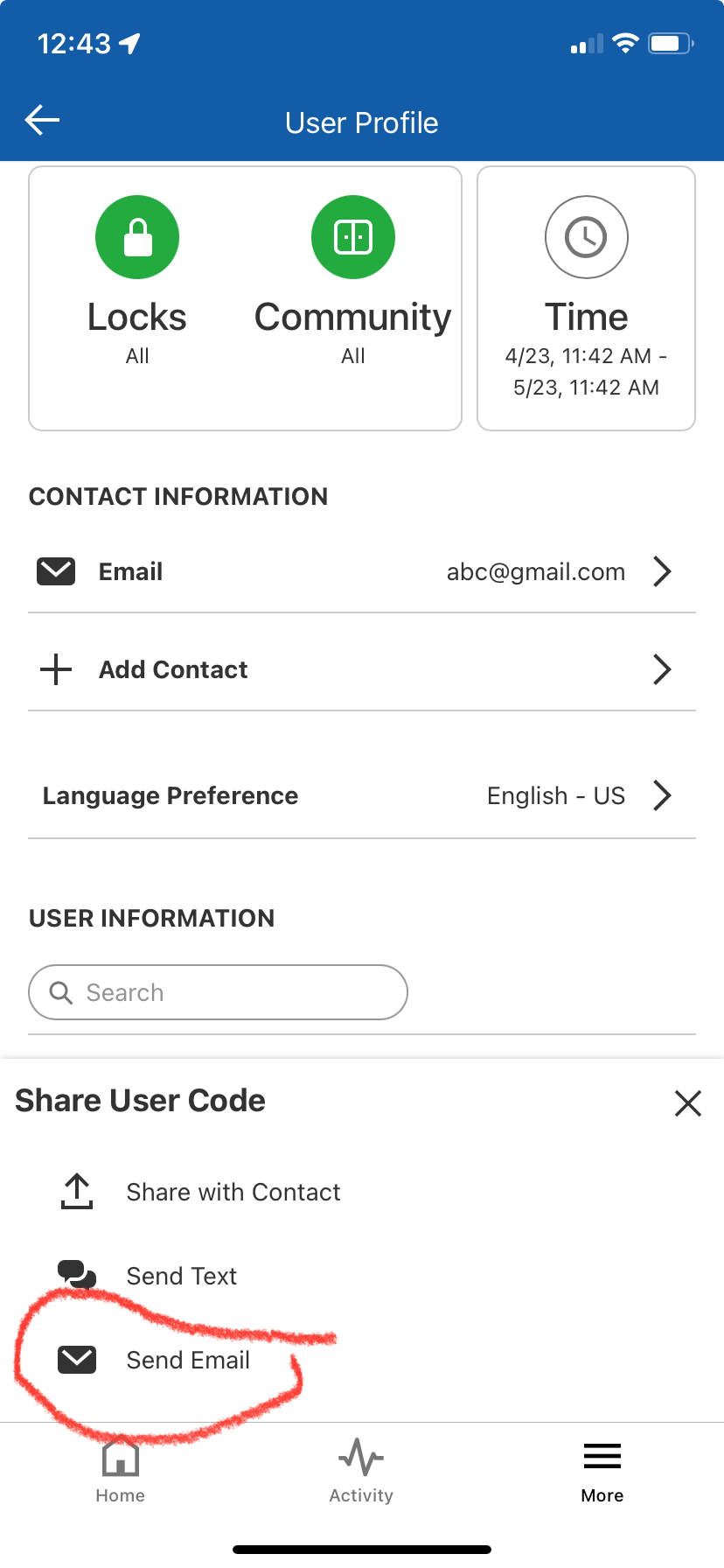
5) Select Time and enter timeframe you want code valid. Also select "contact" and enter email address of the guest. Then click "Share user code", then "Send by Email" at the bottom of screen.