This article shows how to create a video health report on-demand, or to be sent each month.
- Log into the Customer website.
- Click Activity.
- Click Reports.
- Click New Report
- Click Video Health Report.
- In the report name field, enter the desired report name.
- In Cameras to include in the report, click to select All Cameras or Only the following cameras.
- If Only the following cameras is selected, click the select the desired video devices.
Note: SVRs with associated video devices can only be selected as a group.
- If Only the following cameras is selected, click the select the desired video devices.
- Click to select Summary and Details or Summary Only.
- Summary and Details includes connectivity and other information for the selected video devices individually as well as a high-level summary.
- Click to select Show Snapshots to include thumbnail images of each video device's most recently captured image.
- Summary Only includes only high-level information about the selected video devices as a group.
- Summary and Details includes connectivity and other information for the selected video devices individually as well as a high-level summary.
- Click Add to choose who receives the report email.
- Click Save. While the rule is active, the chosen recipients receive the report in an email every month.
What a Video Health Report contains
High-level system summary
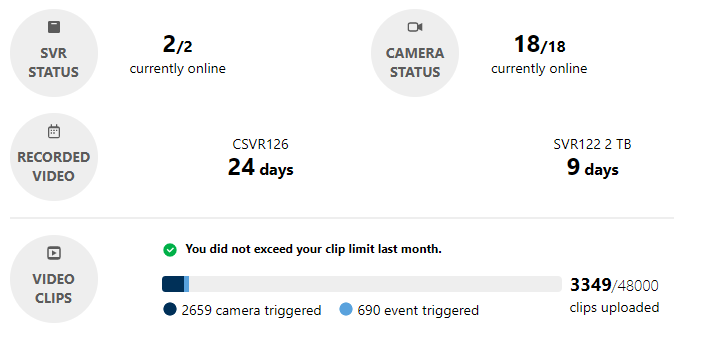
- The number of SVRs and cameras currently online/offline.
- The number of days of recorded video available for each SVR at that location.
- Video clip counts broken out by camera-triggered, event-triggered, and alarm-triggered clips. This helps customers see how close they are to exceeding their clip limit for that month.
Enterprise multi-account summary
Enterprise customers can receive a high-level summary for all their locations that have a Commercial Video service package or add-on. The report includes:
- The number of SVRs currently online.
- The number of cameras currently online.
- The number of locations within the monthly clip limit.
Individual SVR details

- Online/Offline status.
- Prior Month's Connectivity (i.e., Excellent, Good, Poor).
- This measures the success rate of Alarm.com's communication with the SVR.
- Last Successful Supervision.
- A timestamp of the last time Alarm.com successfully confirmed the status of the SVR.
- Last Failed Supervision.
- A timestamp of the last time Alarm.com failed to confirm the status of the SVR.
- Last Bootup Time.
- A timestamp of the last time the SVR rebooted.
- The number of cameras connected to the SVR.
- Oldest video date.
- The date when the oldest video was recorded.
Individual video device details
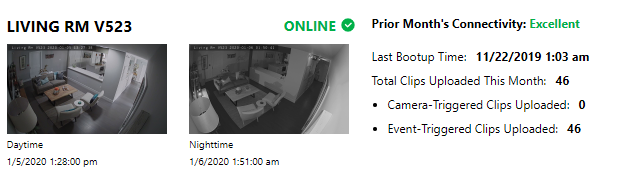
- Online/Offline status.
- Prior Month's Connectivity (Excellent, Good, Poor).
- This measures the success rate of Alarm.com's communication with the video device.
- Total Clips Uploaded This Month.
- Daytime and Nighttime snapshots.
- The VHR includes the most recently captured images from each video device.
- Click to expand images for a closer look.
- If the service provider generates an on-demand report using Log In with Access, the snapshots are hidden. For more information about Log In with Access, see Using Log In with Access.
Note: Snapshots are not available for the following cameras: SkyBell Doorbell Cameras and IQ Panel 2 integrated cameras.
For SVR-connected cameras
Video devices associated to an SVR have all of the data points a standalone video device would have, plus the following:
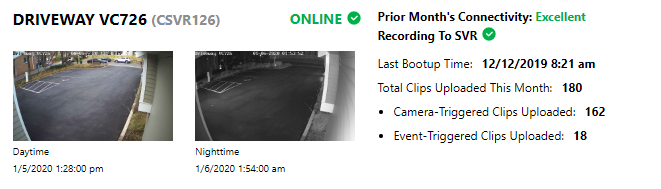
- Most Recent Video Recording.
- This is shown only if the status of the camera is Not Recording to SVR. This data point is hidden if the status of the camera is Recording to SVR.
- SVR recording status.